The duplicate events problem
The script worked. You ran it again after fixing two times in the sheet, and now every event exists twice. Nothing in your code is wrong in the way you're looking for. The function you called only knows how to create, and the piece that would let it recognize its own work is something the script has to save for itself.
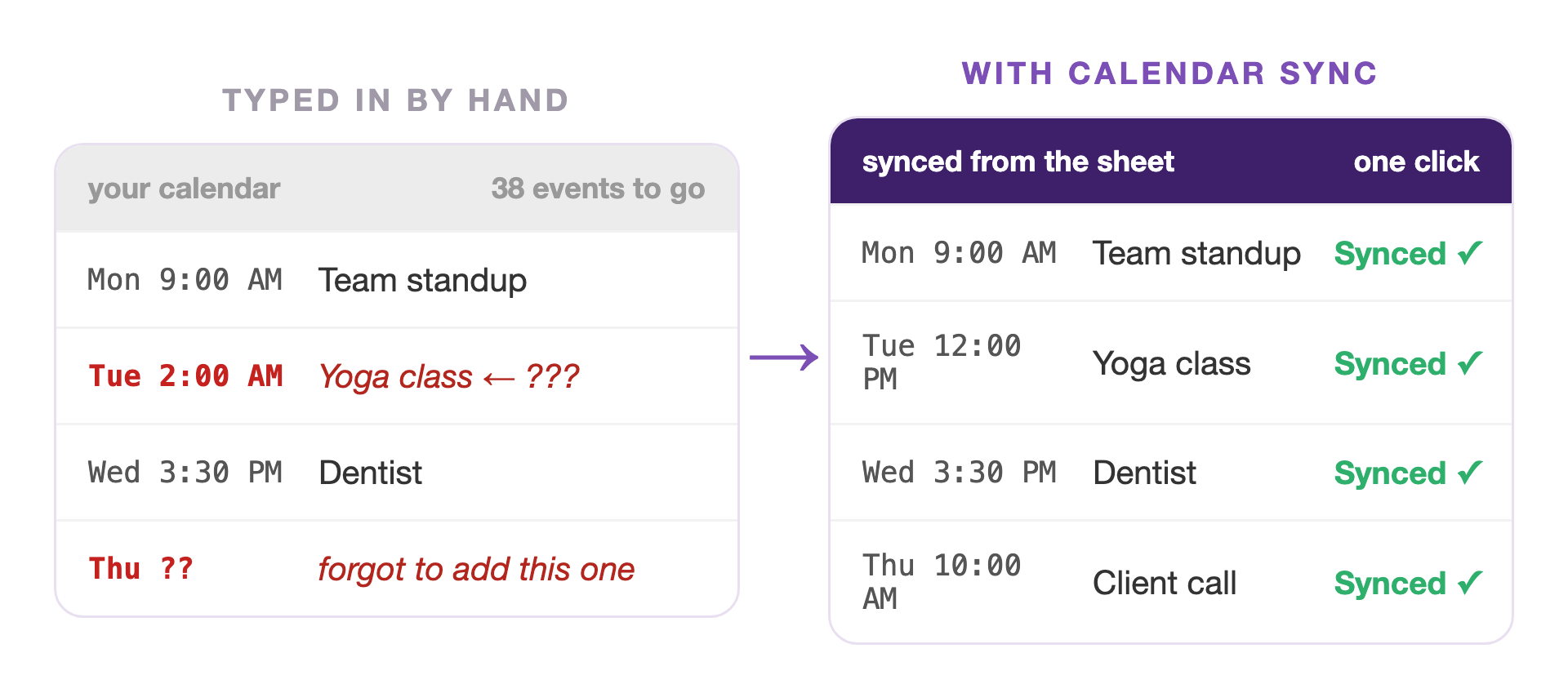
The shortcut · from Marinette
Calendar Sync for Sheets™
Install free from the Marketplace →No account to create · No website login · Your data stays in your Google account
Google's own CalendarApp reference describes createEvent() in three words: it creates a new event. That's the whole contract. There's no method anywhere in that reference that finds an event by title, by date, or by description and updates it instead.
So a loop like this isn't buggy. It's doing exactly what it says, twice.
The shape almost every tutorial gives you
rows.forEach(function (row) {
cal.createEvent(row.title, row.start, row.end); // always a new event
});
The only way to reach an event you already made is getEventById(), and it wants the event's iCal id. Not the title. Not the date. The id, which existed only for a moment inside the run that created it, and which vanished when that run ended.
That's the missing half of the job: not creating events, but remembering which row made which one.
The same forty rows, run twice
How duplicates arrive
Forty rows, forty createEvent calls, forty events. Correct.
Two times move. You fix those two rows in the sheet.
Forty more createEvent calls. The script has no record of run one, so it makes forty more events.
What the script actually needs
Create the event, call getId() on it, write that id back into a column on the same row.
Two times move. The ids stay where they are.
Read the id first. Empty means create and save the id. Filled means getEventById() and update in place.
Writing that yourself is a reasonable afternoon. Keeping it honest afterwards is the part that grows: what happens when somebody deletes the event in Google Calendar and the id now points at nothing, when a row is deleted but its event isn't, when two people run the script at once, when the id column gets sorted away from its row.
These are published in Google's Apps Script quota documentation, and a row-by-row calendar loop meets all three sooner than you would guess.
Apps Script quotas · Script runtime
"6 min / execution"
Apps Script quotas · Calendar events created
"5,000 / day"
Apps Script quotas · Triggers total runtime
"90 min / day"
None of this makes a script the wrong choice. If the job runs once, or the rules are strange enough that no add-on will ever fit them, a script is the right tool and you should write it. It's worth knowing what you've signed up for before the calendar has eighty events in it.
Side by side
| A script you maintain | Calendar Sync for Sheets™ | |
|---|---|---|
| Running it twice | Duplicates everything unless you store ids yourself | ✓ One row, one event, every time |
| Knowing what will happen | Whatever the code does, found out afterwards | ✓ A preview first: created, updated, and who gets emailed |
| Someone edits the event in Calendar | The next run overwrites it, or fails on a dead id | ✓ The row says so instead of silently overwriting |
| The 6 minute execution ceiling | Yours to batch around | ✓ Handled, with progress you can watch |
| Handing it to a colleague | They inherit your code and its authorization prompts | ✓ They install it from the Marketplace |
| Cost | Free, plus your time forever | ✓ Free. No caps, no card, no account |
Script behavior above reflects Google's own documentation, the CalendarApp reference and Apps Script quotas, viewed July 24, 2026.
Calendar Sync for Sheets™ is free. No card, no account to create.
Install Calendar Sync for Sheets™ free →FAQ
Because createEvent() only ever creates. Google's CalendarApp reference describes it as creating a new event, and no method in that reference finds an existing event by title, date, or description and updates it. A script that loops rows and calls createEvent() has no memory of what it made last time, so the second run makes a second copy of everything.
The only way back to an event you already created is getEventById(), which needs the event's iCal id, so the script has to have saved that id on the first run.
Store the id. When the script creates an event, call getId() on it and write that value into a column on the same row. On later runs, read that cell first: empty means create the event and save the new id, filled means call getEventById() and update that event in place.
The sheet becomes the record of which row owns which event, which is the part most tutorial scripts leave out.
Apps Script caps a single execution at 6 minutes, for consumer and Google Workspace accounts alike. A loop that creates an event and writes back to the sheet on every row can reach that in a few hundred rows, and the run stops wherever it got to.
The daily quotas are worth knowing too: 5,000 calendar events created per day on a consumer account and 10,000 on Workspace, plus 90 minutes of total trigger runtime per day on consumer accounts and 6 hours on Workspace.
A script is a good answer when the job runs once, the rules are unusual, and you're happy maintaining it. An add-on is the better answer when the same sheet is edited again and again by people who should not have to think about ids, quotas, or authorization prompts.
Calendar Sync for Sheets™ does the id bookkeeping, previews every change before it happens, and says what was created, what was updated, and what someone changed in Calendar.
Yes, but not on the same rows at the same time. Calendar Sync keeps its own sync identity per row, and a separate script creating events from those same rows would produce a second set that Calendar Sync didn't make and doesn't track. Point them at different sheets, or let one of them own the schedule.
Different door, same room. A CSV row carries no event id either, so a second import adds a second copy rather than updating the first. Why uploading a CSV to Google Calendar duplicates your events →
Method behavior and quota numbers on this page come from Google's own developer documentation, the CalendarApp reference and Apps Script quotas, viewed July 24, 2026. Google may change quotas at any time.
Still have a question? I'm happy to help.
Email support@getmarinette.com