Expense Tracker for Sheets™ by Marinette
Track every expense, log every business mile, and know exactly what you can deduct, right inside Google Sheets. No new app to learn. No subscription to manage. Just your spreadsheet, working harder.
Free to install · Your data never leaves Google
When you install, Google shows a screen of permission boxes that all start unchecked. Tick every one, or the add-on cannot do its job.
How it works
One click builds your Expense Log, Summary, and Settings tabs.
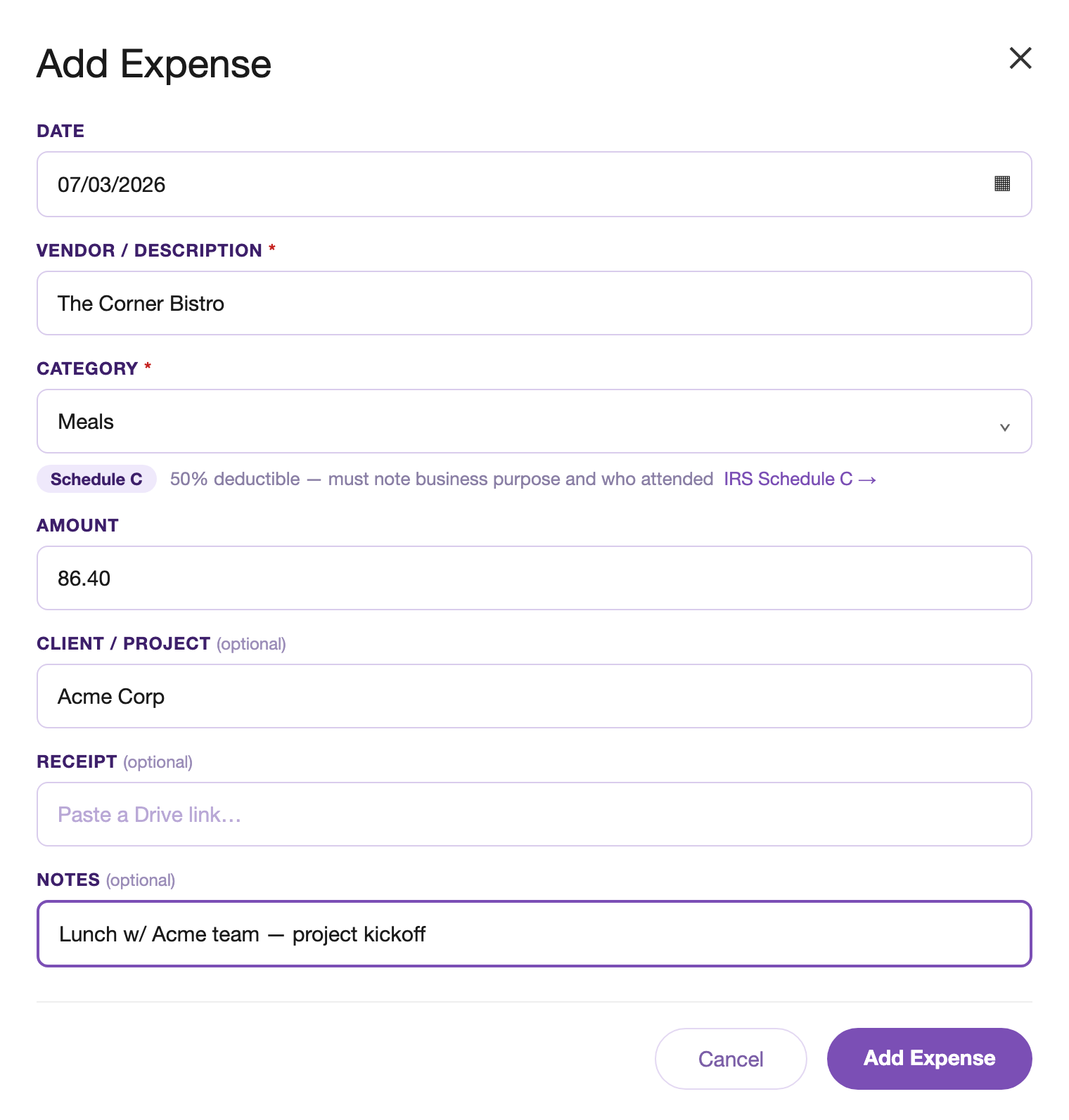
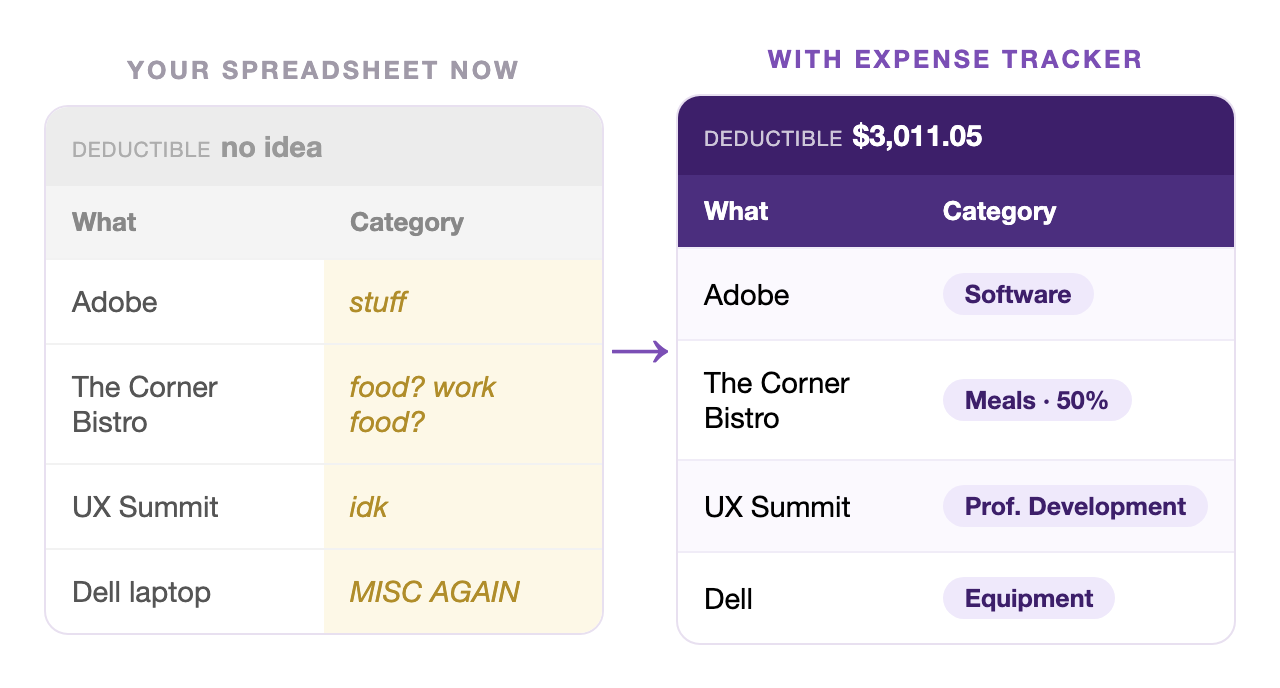
Pick a category and the deductible amount fills in automatically.
Miles logged calculate your deduction at the current IRS rate.
Catches missing receipts and common mistakes before you file.
See it in action
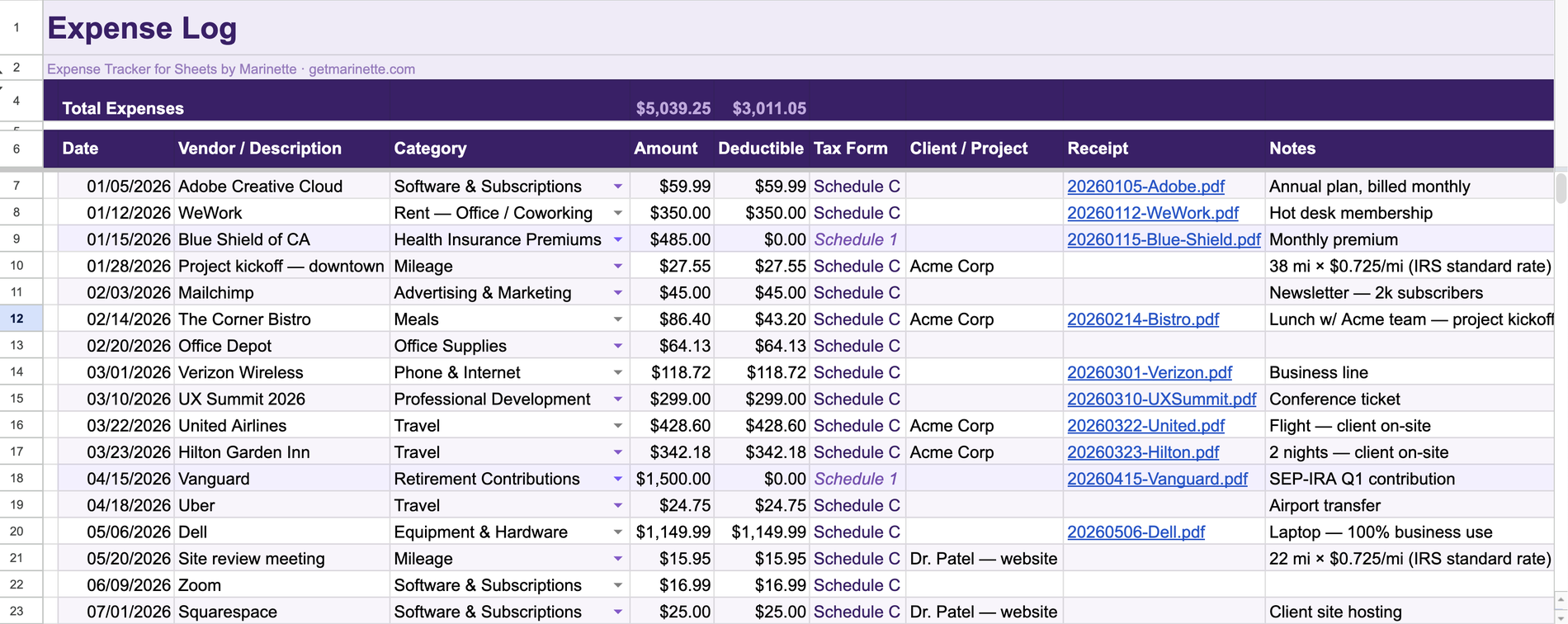
A year of expenses with categories, amounts, deductible math, tax forms, and linked receipts. This is the whole system.

Meals show their 50% rule, mileage uses the IRS rate, and every entry lands with its tax form attached.

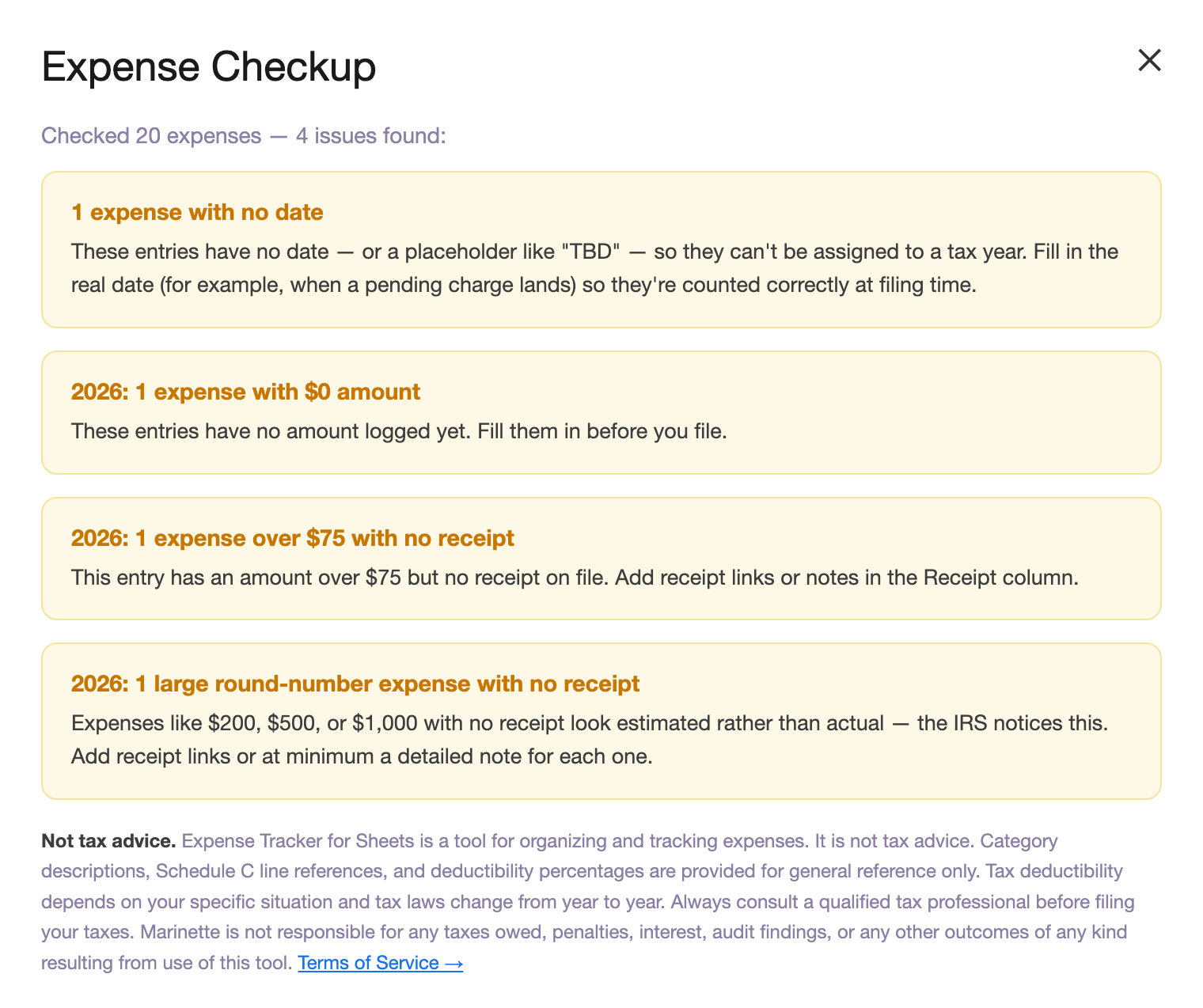
Expense Checkup finds missing receipts, undated entries, and mixed mileage methods before tax time does.

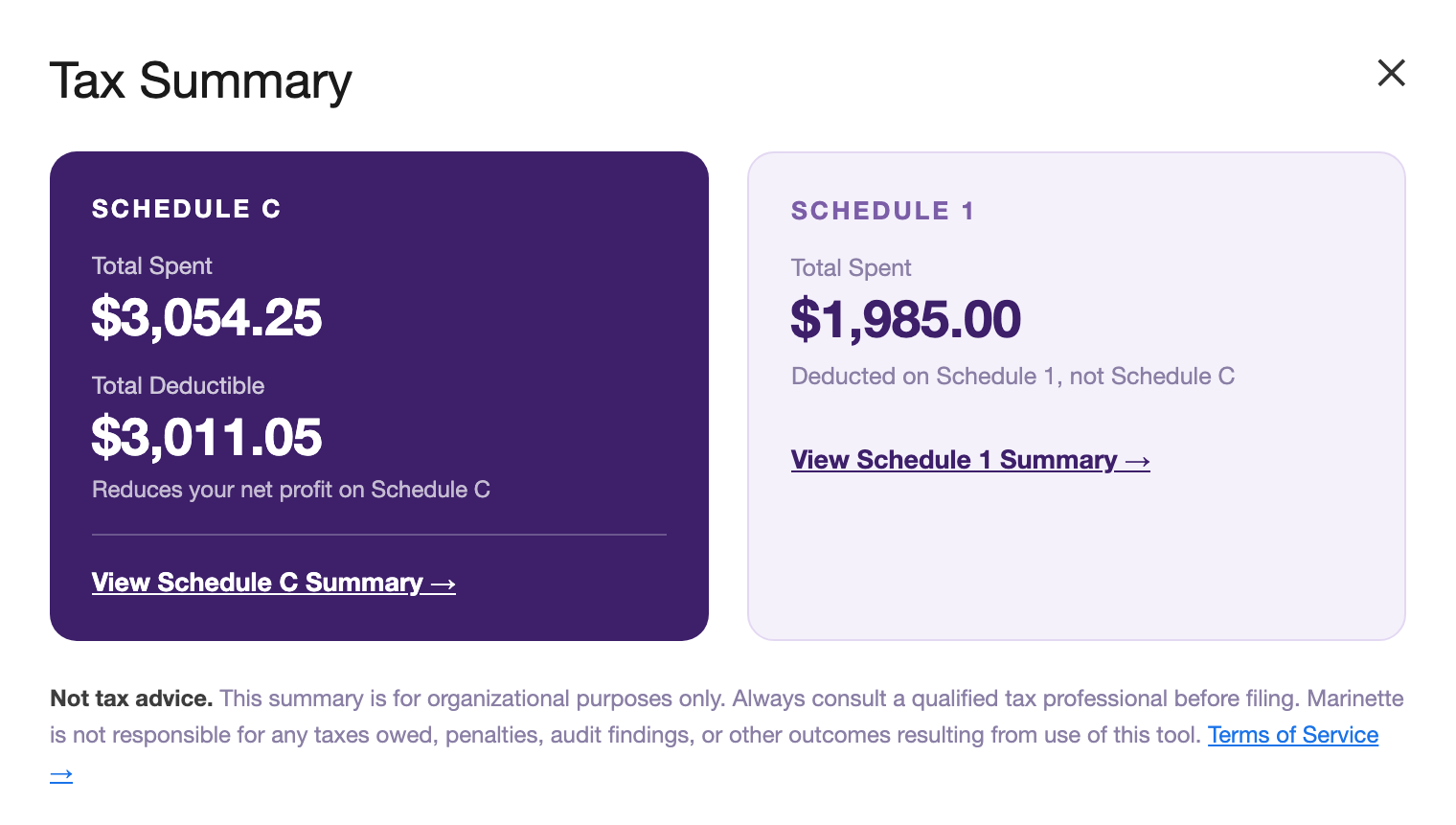
All you did was type in expenses. The Tax Summary keeps Schedule C and Schedule 1 added up all year.
Why Expense Tracker for Sheets™
Everything runs inside your Google account. Nothing is stored or sent to external servers, ever.
24 built-in expense categories, from mileage to home office to meals. Pick a category and the deductible amount fills in automatically.
Expense Checkup scans all your expenses for missing receipts, undocumented meals, mixed mileage methods, and more, so nothing surprises you at tax time.
It lives in Google Sheets, where you already are. No subscription, no new login, no app to remember.
Free to install · Works in any Google Sheet · Questions? Email me.
Sending invoices too? Invoice Manager for Sheets™ is my free invoicing add-on.
Install free from the Google Workspace Marketplace™ →Help & FAQ
These are real deductions. They just don't belong on Schedule C. Self-employed health insurance premiums and retirement contributions (SEP-IRA, Solo 401k) are deducted on Schedule 1 of your Form 1040, which reduces your total adjusted gross income.
The Deductible Amt column shows $0 so your Schedule C total stays accurate. Your tax software handles Schedule 1 automatically. Just make sure you have the amounts logged so you know what to enter. Consult your tax professional to confirm how these apply to your situation.
The IRS recommends keeping receipts for any expense over $75. When you log an expense above that amount without a receipt link, the cell is highlighted as a reminder. Paste a Google Drive™ link to your receipt and the highlight clears automatically. Consult your tax professional about your specific record-keeping requirements.
Tip: my free Receipt Organizer saves receipts from Gmail™ into Drive. Paste the link into your Receipt column.
No. The IRS requires you to choose one method for the entire tax year. Mileage uses the IRS standard rate and covers gas, oil, repairs, and depreciation. Vehicle Expenses tracks actual costs. Tolls and parking are deductible separately with either method. Log those under Travel. Expense Checkup will flag it if you have both in the same year. Consult your tax professional about which method is right for your situation.
I recommend starting a fresh sheet for each tax year. Just run Set Up New Sheet in a new Google Sheet at the start of each year. This keeps your Tax Summary accurate and your years cleanly separated.
Open the ⚙️ Settings tab and update cell B5. The current rate is $0.725 per mile for 2026. Update it each January when the IRS announces the new rate. Updating only affects future calculations; past entries are not changed.
Yes. When you set the Category column, Deduct %, Deductible Amt, and Tax Form fill in automatically. Changing the Amount recalculates the deductible amount. This works when pasting too: paste a single cell or whole rows copied from another sheet, and the columns fill in for every pasted row. The dialogs are just a faster way to add well-formatted rows. Both approaches produce the same result.
Yes, sorting is safe. The alternating row colors use conditional formatting rules, not manually applied colors, so they reapply correctly after any sort. Use Data → Sort range in Sheets. Sorting by the Date column (B) is the most common.
That's Google's standard wording for the auto-fill feature. When you type or paste a category into your expense sheet, a small background trigger fills in the Deduct %, Deductible Amount, and Tax Form columns for you. Google describes any trigger like this as permission to "run when you are not present."
It only runs when your expense spreadsheet is edited, it only touches that spreadsheet, and nothing is ever sent outside your Google account. See the privacy policy for the full details.
It scans all your expenses across every year in the sheet and flags: undated expenses (including placeholders like "TBD"), expenses with no category, mixed vehicle deduction methods, $0 amounts, missing receipts over $75, meals with no business notes, round-number expenses of $200 or more with no receipt, undocumented Home Office entries, large "Other" expenses over $200, possible duplicate charges, and "Other" entries with no notes. A separate informational note flags if Meals exceed 20% of your total expenses. Consult your tax professional before filing to review any flagged items.
Try the free quarterly tax calculator. Type in your income and expenses and it estimates self-employment tax, income tax, and what to set aside each quarter. Expense Tracker feeds the same math automatically as you log expenses throughout the year.
Every category carries its line with it, so the year totals up already sorted the way the form asks for it. Mileage and vehicle costs both sit on line 9, meals on 24b, a home office on line 30 by itself, and anything without a natural line goes to Part V and lands on 27b.
The full list of Schedule C expense lines, and what belongs on each →
That almost always means the browser is signed into more than one Google account. Google routes add-on sidebars to whichever account signed in first, so the sidebar can end up running as the wrong one. It's a known Google limitation that affects every add-on from every developer. Nothing is wrong with your sheet or your data.
The quick fix: open the spreadsheet in a window signed into only the account you use with the add-on. The lasting fix is giving each Google account its own Chrome profile. Here's the full explanation and both fixes.
Still have a question? I'm happy to help.
Email support@getmarinette.com