Calendar Sync for Sheets™
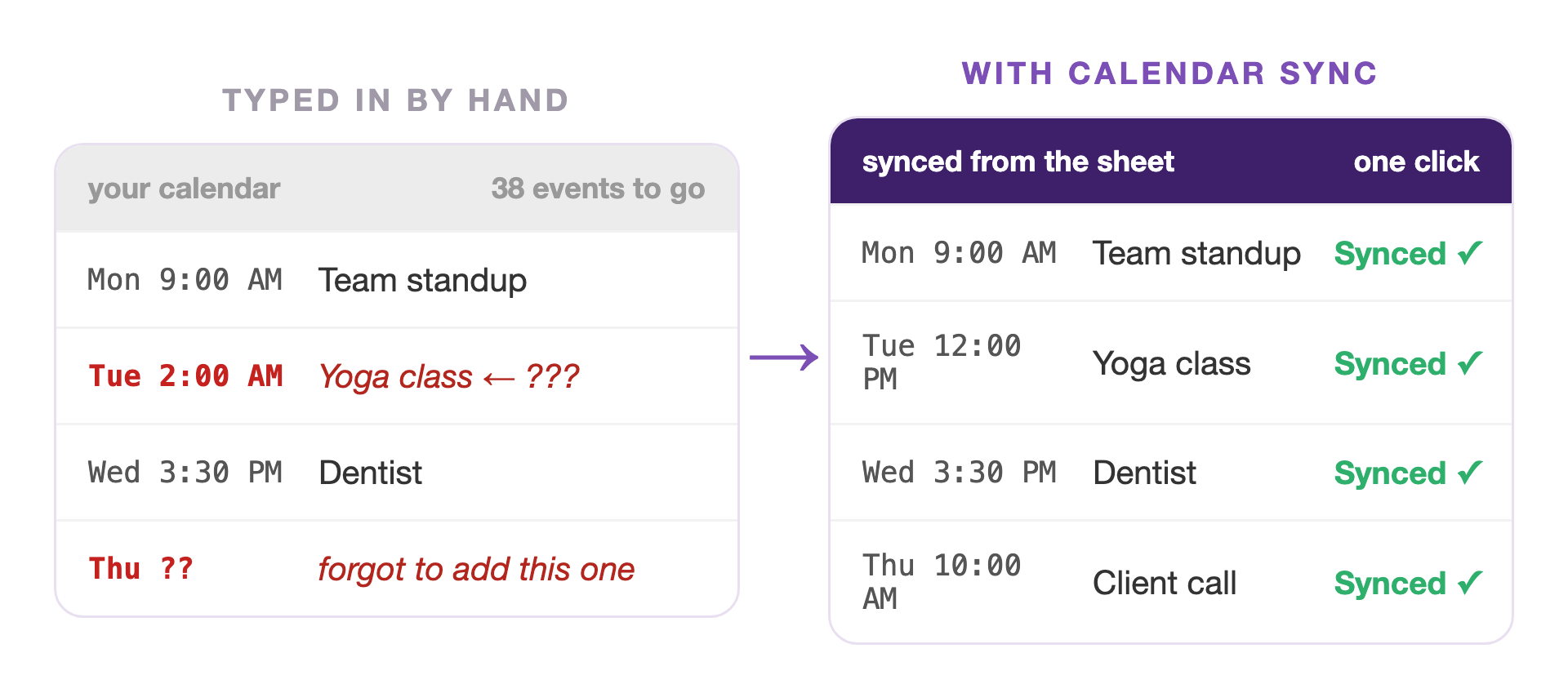
Type events as rows in Google Sheets™, preview exactly what will happen, and sync them to Google Calendar™. Edit a row and the event updates. Import what's already on your calendar and manage it in bulk.
Free to install · No account to create · Your data stays in your Google account
When you install, Google shows a screen of permission boxes that all start unchecked. Tick every one, or the add-on cannot do its job.
New Calendar Sync 2.0 is here: Add from Schedule. A PDF, a photo of the posted schedule, a link, or pasted text becomes calendar events, reviewed by you before anything syncs. Free preview, three schedules a day. Want news like this by email? Join the list
How it works
Import your calendar, or start fresh.
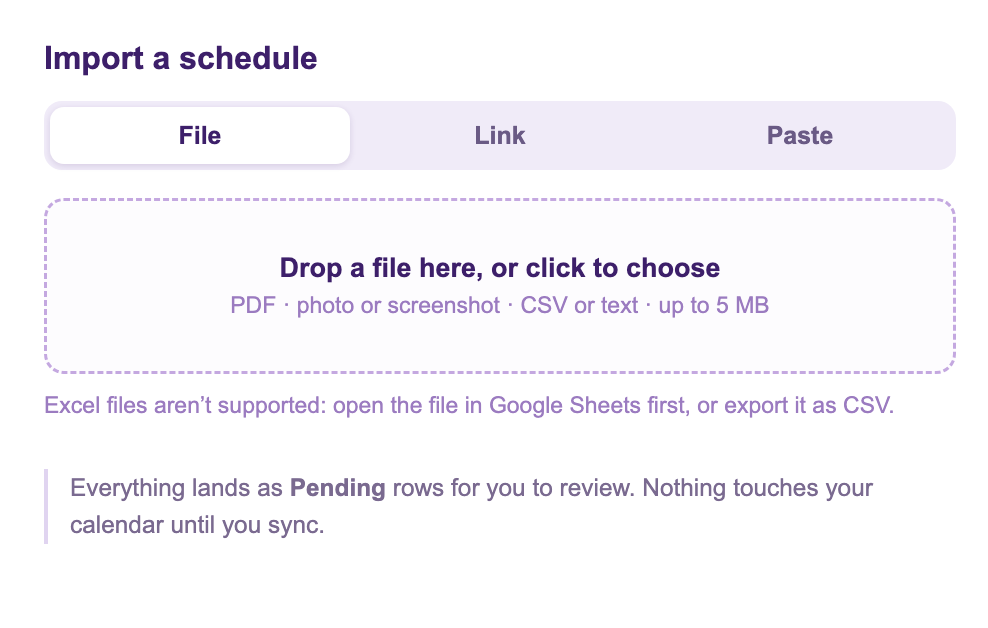
Type them in, or add a whole schedule from a PDF, photo, link, or pasted text.
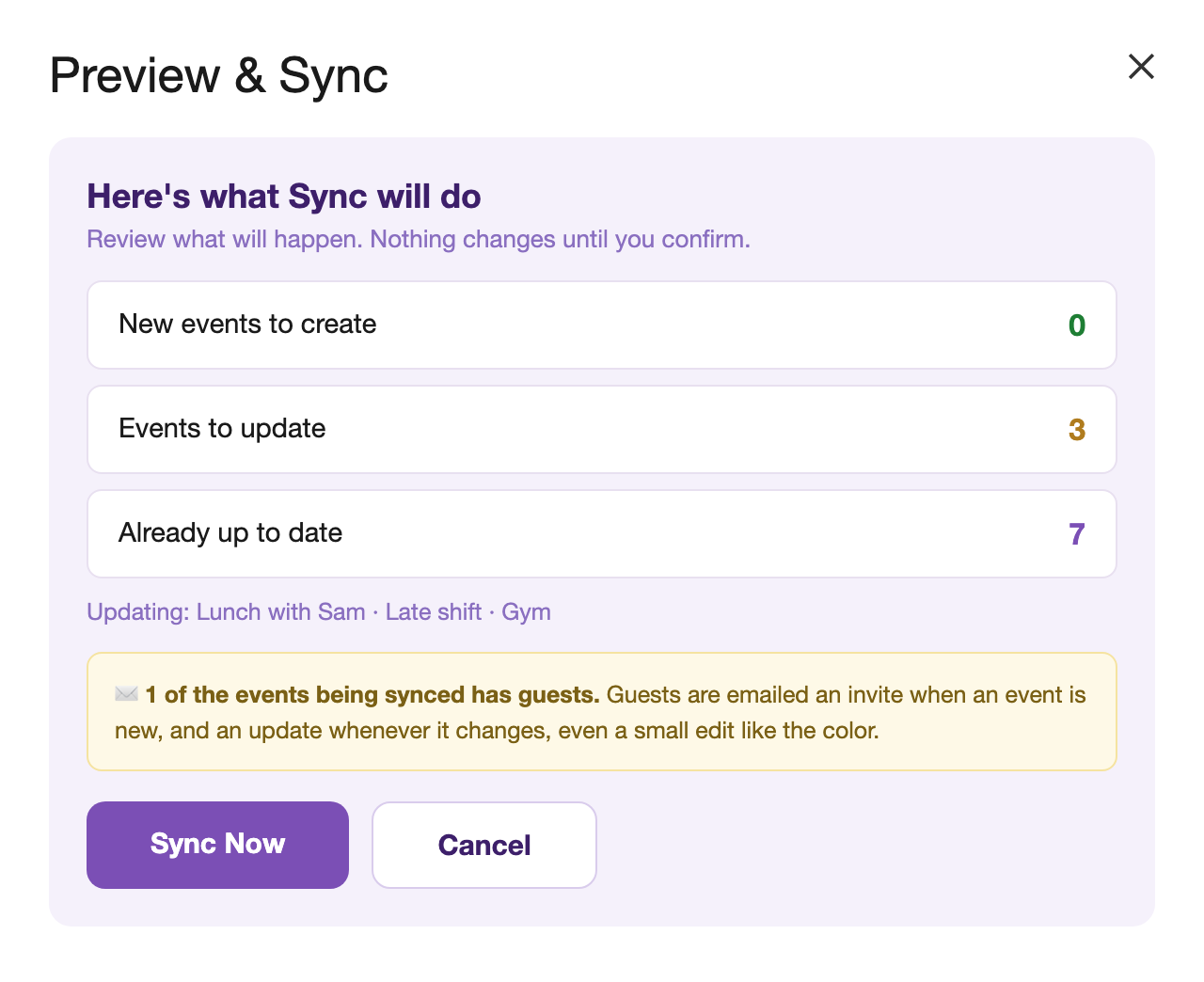
See what changes before anything happens.
Edit a row, sync again. It updates in place, no duplicates.
See it in action

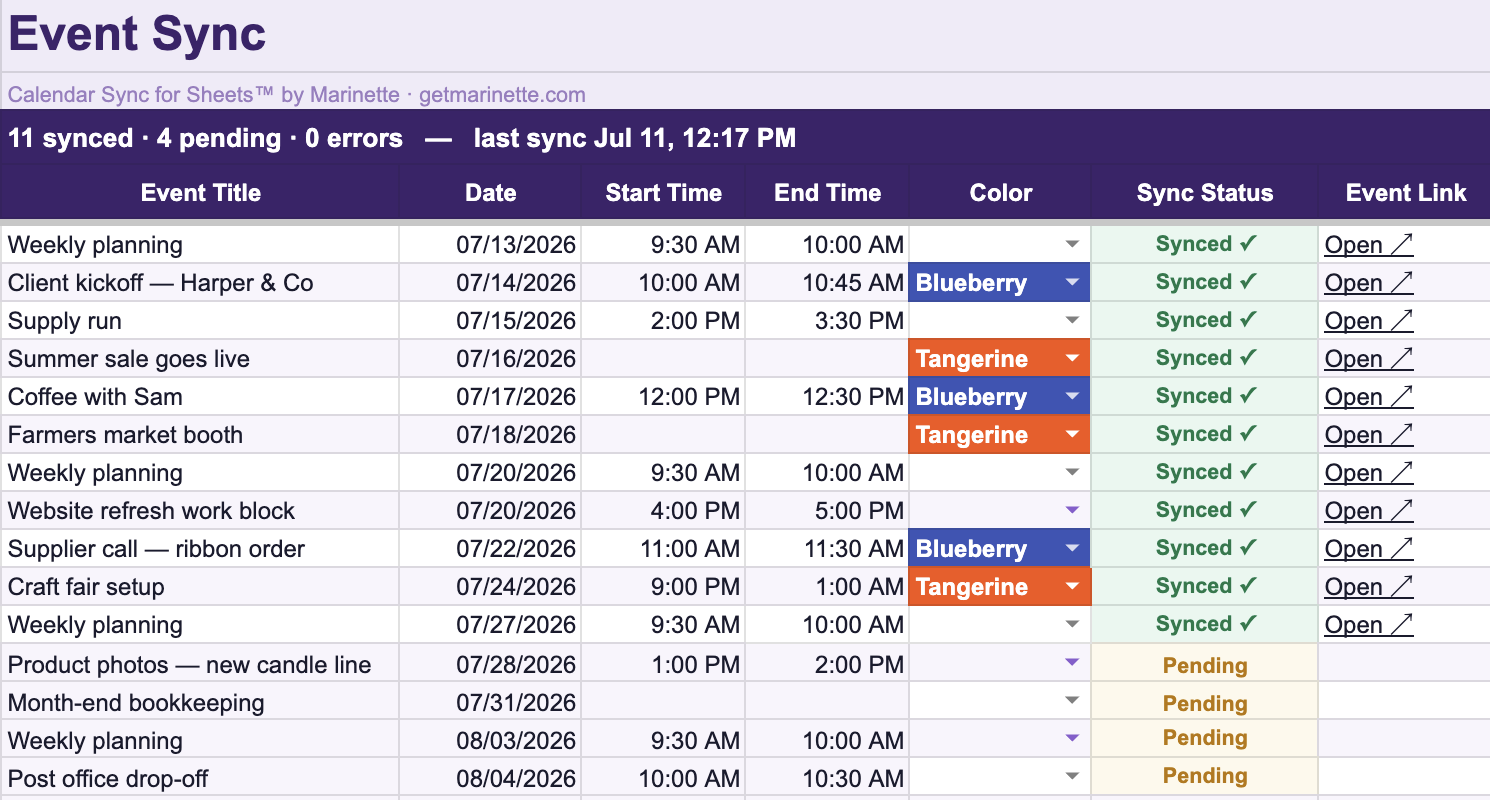
Type a title, date, and time. The Status column shows what’s synced, what’s pending, and what changed.

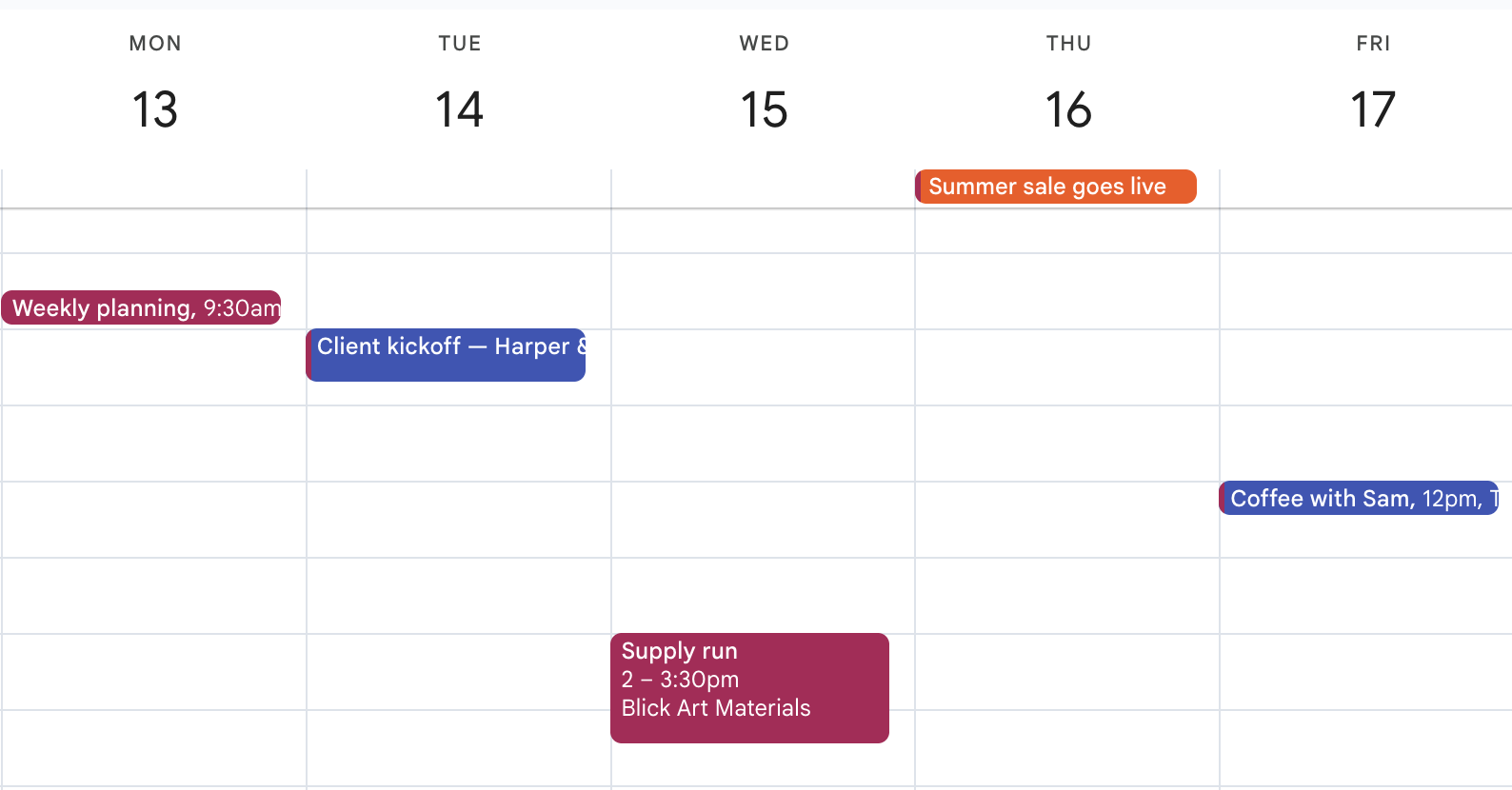
A PDF from school, a photo of the posted schedule, a link, or pasted text: Add from Schedule reads it into rows for you, marked Pending until you look them over. Run it for each schedule in your life, and they all land on one calendar, each in its own color.

See what will be created, updated, or emailed before it happens.

Edit a row and sync again: the event updates in place, no duplicates.
Why Calendar Sync for Sheets™
If an event is deleted or edited directly in Google Calendar, its row says so in plain words. Nothing is silently recreated and nothing is silently overwritten.
Every sync starts with a plain-language preview: what gets created, what gets updated, which guests get emailed, and which rows need fixing.
Invite guests by typing their emails. Add a Google Meet link with a checkbox. These aren't paid extras here.
Pull existing events into the sheet for a date window you choose. It never dumps years of history into your spreadsheet.
Put it on your calendar without retyping a thing. Questions? Email me.
Install free from the Google Workspace Marketplace™ →FAQ
Only when a row that lists guests is created or changed, and the preview tells you before it happens. Unchanged events never email anyone. If you delete a synced row with the deletion setting on, guests are told the event is cancelled.
Each event uses its own calendar's time zone, the same one Google Calendar shows. The Settings tab lists every calendar and its zone, view only. To change one, change it in Google Calendar and refresh the sheet.
Someone edited that event in Google Calendar, so the calendar and your sheet now disagree. The sheet never overwrites those edits silently. The row turns blue and waits for you to pick a side.
If you want to keep the calendar's version:
If you want to keep the sheet's version:
Hover the row's Sync Status cell to see exactly which fields changed.
The next sync or refresh marks the row "Deleted in Calendar" in orange. It is not silently recreated. Edit the row and sync to bring it back, or use the menu to restore several at once.
The row turns blue, "Changed in Calendar", and the note says which fields differ. You choose: keep the calendar's version by importing with the update option, or push the sheet's version by editing the row and syncing. If both sides changed, the preview warns you before the sheet's version wins.
No. Import them. Pick a calendar and a date window, preview the count, and the events become rows you can edit in bulk. Importing first also means the sheet knows what's already there, so you don't create duplicates.
Both of those create events without remembering which one came from which row, so running them a second time gives you two of everything. Calendar Sync gives each row its own sync identity and keeps it, which is why editing a row moves the event it already made instead of adding another.
Why uploading a CSV duplicates your events →
Why an Apps Script duplicates calendar events →
How to undo an import that already went wrong →
How to bulk edit calendar events with a sheet →
Overnight events work: 9:00 PM to 1:00 AM ends the next morning, and ending at 12:00 AM means midnight. Events longer than a day, like a three day conference, don't fit a single row yet, and import skips them rather than guessing.
Not yet. Nothing moves until you click, which is deliberate while you're getting started. Scheduled automatic sync is on the list.
Sort freely. Each row carries its own sync identity, so statuses, links, and colors travel with their rows. The striping stays put because it's keyed to row position, not data.
Between your spreadsheet and your calendar, inside your own Google account. There is no Marinette server reading your events and no account to create. If you use the optional schedule import, the file, link, or text you choose is sent to Anthropic's Claude to be read, and nothing else ever leaves your account. See the privacy policy for the full details.
That almost always means the browser is signed into more than one Google account. Google routes add-on sidebars to whichever account signed in first, so the sidebar can end up running as the wrong one. It's a known Google limitation that affects every add-on from every developer. Nothing is wrong with your sheet, your calendar, or your data.
The quick fix: open the spreadsheet in a window signed into only the account you use with the add-on. The lasting fix is giving each Google account its own Chrome profile. Here's the full explanation and both fixes.
Still have a question? I'm happy to help.
Email support@getmarinette.com