The import with no undo
There's no undo button in Google Calendar, and no way to select more than one event at a time. If you only need to remove a few events, it is fastest to delete them by hand. When there are too many to remove manually, the free Calendar Sync for Sheets™ add-on takes them all off in one pass, with a preview of exactly what will be removed. The steps are below.
The bulk clean-up tool · from Marinette
Calendar Sync for Sheets™
Install free from the Marketplace →No account to create · No website login · Your data stays in your Google account
Google's import documentation explains how to bring a CSV or ICS file into Calendar. It says nothing about reversing one, because once the import finishes, the events it created are ordinary events. Nothing marks them as imported, and nothing connects them back to the file they came from. Undoing an import means one thing: deleting the events it created.
If it's only a handful, delete them by hand and move on. Switch to Day or Schedule view first so nothing hides behind a "+3 more" link, then click each wrong event and delete it. Up to about twenty events, that's genuinely the fastest route. (And if the import landed in a separate calendar you created, it's one step: delete that calendar in Settings, and everything on it goes too.)
Past that, the math turns on you. Google Calendar deletes one event per click, and a two-hundred-event import means an evening of paging through week views. That clean-up is what the rest of this page is for.
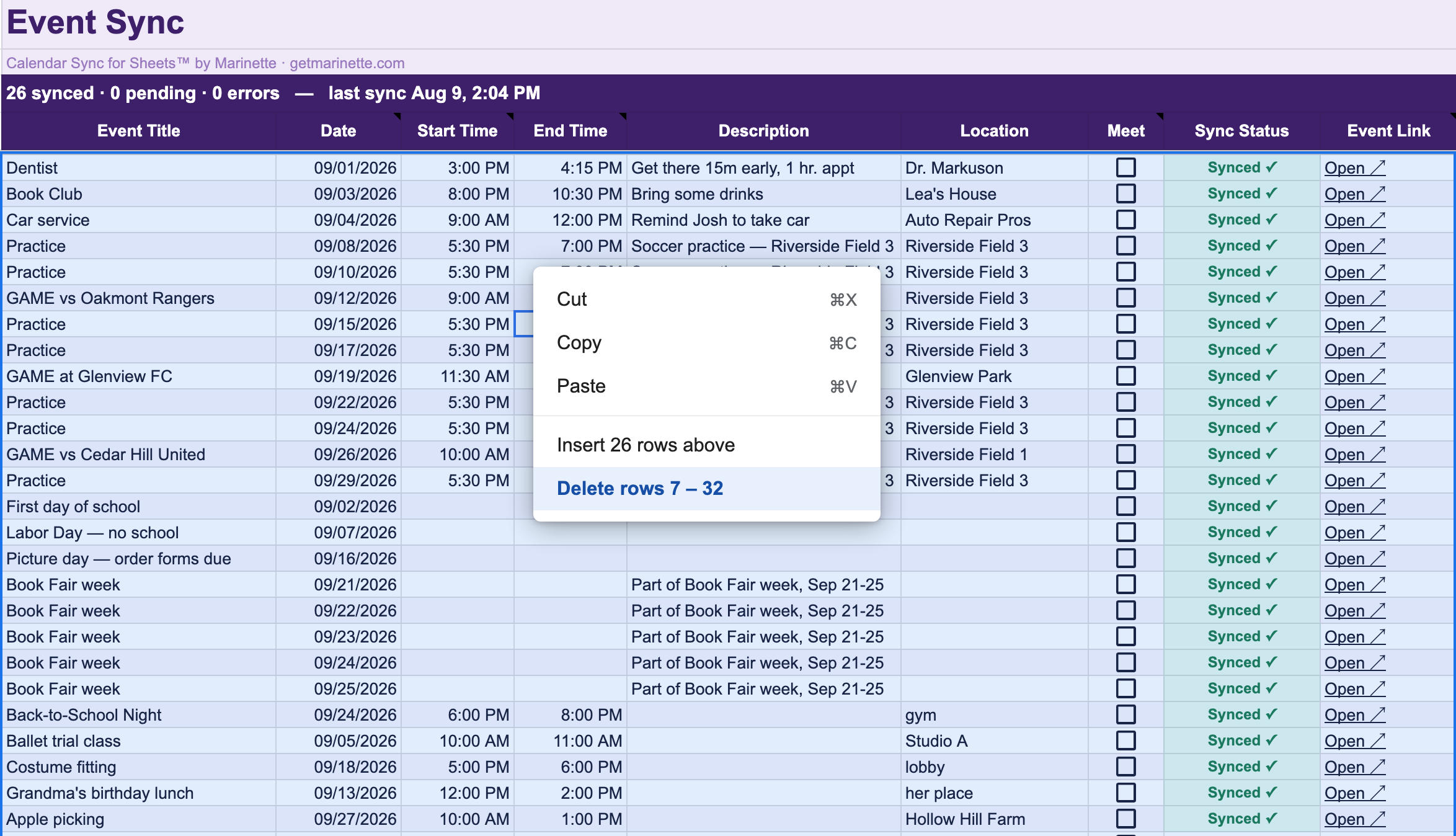
A spreadsheet is good at exactly what Calendar refuses to do: select three hundred things and delete them in one motion. The free Calendar Sync for Sheets™ add-on connects a sheet to your calendar in both directions, so it can pull the imported events in as rows and push your deletions back out.
The same steps on screen, start to finish, in under a minute. Below in writing if you would rather read them.
One limit to know about: events longer than a single day don't fit the one-row-one-day model, so the import skips them and tells you how many it skipped. Those few will need to be deleted manually. Repeating events are not a problem: a CSV import usually turns them into separate one-time events (Google's documentation says so), so each one is a row, and rows delete in bulk.
And once the mess is gone, consider not going back to file imports at all. If your events start life in a spreadsheet, Calendar Sync for Sheets™ creates them straight from the rows, updates the event when you edit its row, and previews every change before it happens, so there's never an import to undo. Why re-importing a corrected file makes things worse instead of better is its own story: why your CSV won't import, and why the second import doubles your calendar.
Side by side
| By hand in Google Calendar | Through a sheet, with Calendar Sync for Sheets™ | |
|---|---|---|
| Selecting events | One event per click. There is no multi-select. | ✓ Select hundreds of rows at once |
| Deleting 200 events | An evening of paging through day and week views | ✓ Delete the rows, sync once. Minutes. |
| Keeping the events that belong | You re-decide at every single event | ✓ Sort the rows, delete the wrong ones, keep the rest |
| Knowing what will happen | Nothing until it's already done | ✓ A preview counts every removal before anything is touched |
| A record of what came off | None | ✓ The sheet keeps the list |
| Price | Free | ✓ Free. No card, no account to create |
Calendar Sync for Sheets™ is free. No card, no account to create.
Install Calendar Sync for Sheets™ free →FAQ
No. Google's import documentation describes how to import CSV and ICS files and offers no way to reverse one. The events an import creates are ordinary events, with nothing marking them as imported and nothing grouping them together.
That leaves three clean-ups: delete the whole calendar if the import went into a separate one, remove events one by one, or pull the affected range into a spreadsheet and delete in bulk from there.
Google Calendar has no multi-select, so the practical route is a spreadsheet. Install the free Calendar Sync for Sheets™ add-on, import the date range with the events you want to delete, delete their rows, set the delete option to Yes on the Settings tab, and run Preview & Sync. The preview counts what will be removed before anything is touched.
You cannot delete your primary calendar, so the delete-the-calendar shortcut is off the table there. Your options are removing events by hand or the spreadsheet method above, which works on the primary calendar because it removes individual events rather than the calendar itself.
Yes. Open Calendar's Settings, choose that calendar in the left column, scroll to Remove calendar, and choose Delete. Every event on it disappears with it.
It's also the habit that prevents the next bad import: import into a brand-new calendar first, check the result, and merge only once it looks right. A wrong calendar costs one click. A wrong import into your main calendar costs the rest of this page.
Usually no. Google's documentation notes that guest data is dropped during a CSV import, so imported events typically have no guests to notify. If an event does have guests, removing it sends them a cancellation, which is what you want. Calendar Sync for Sheets™ calls out guest emails in its preview before you sync, so nothing goes out unannounced.
That's where the spreadsheet method earns its keep. The imported events arrive as rows you can sort and read, so you delete the rows that are wrong and leave the rows that are right. A calendar-level delete can't make that distinction, and hand-deleting makes you re-decide it two hundred times.
Two habits. If you must use Google's importer, import into a brand-new secondary calendar first, check the result, and merge only when it's right. And if your events start life in a spreadsheet, skip the file export entirely: Calendar Sync for Sheets™ creates events straight from the rows, previews every change, and can update or remove them later. There is never an import to regret, because there is never an import.
If you just deleted an event, look for the brief Undo message at the bottom of the screen. After that, deleted events sit in Calendar's Trash for 30 days: open Settings, then Trash, and restore from there. Moved or edited events have no undo, so the fix is editing them back.
The import behavior described on this page comes from Google's own help pages, Import events to Google Calendar and Fix problems importing, viewed August 6, 2026. Google may change how import works at any time. Related: three ways to sync Google Sheets™ to Google Calendar™.
Still have a question? I'm happy to help.
Email support@getmarinette.com