Slot Booking for Forms™ by Marinette
Slot Booking for Forms™ is an add-on for Google Forms™ that adds appointment and sign-up slot booking to your forms. Set your times and how many people fit in each one: full slots close themselves, and every booking lands on your Google Calendar™ with the guest already invited.
No account to create · No website login · Your data stays in your Google account
When you install, Google shows a screen of permission boxes that all start unchecked. Tick every one, or the add-on cannot do its job.
How it works
Choose your calendar, slot length, and capacity.
A dropdown of open times appears on your form automatically.
Each booking becomes a calendar event. Full slots disappear from the form automatically.
A roster of who's booked, plus an alert when something needs your attention.
See it in action

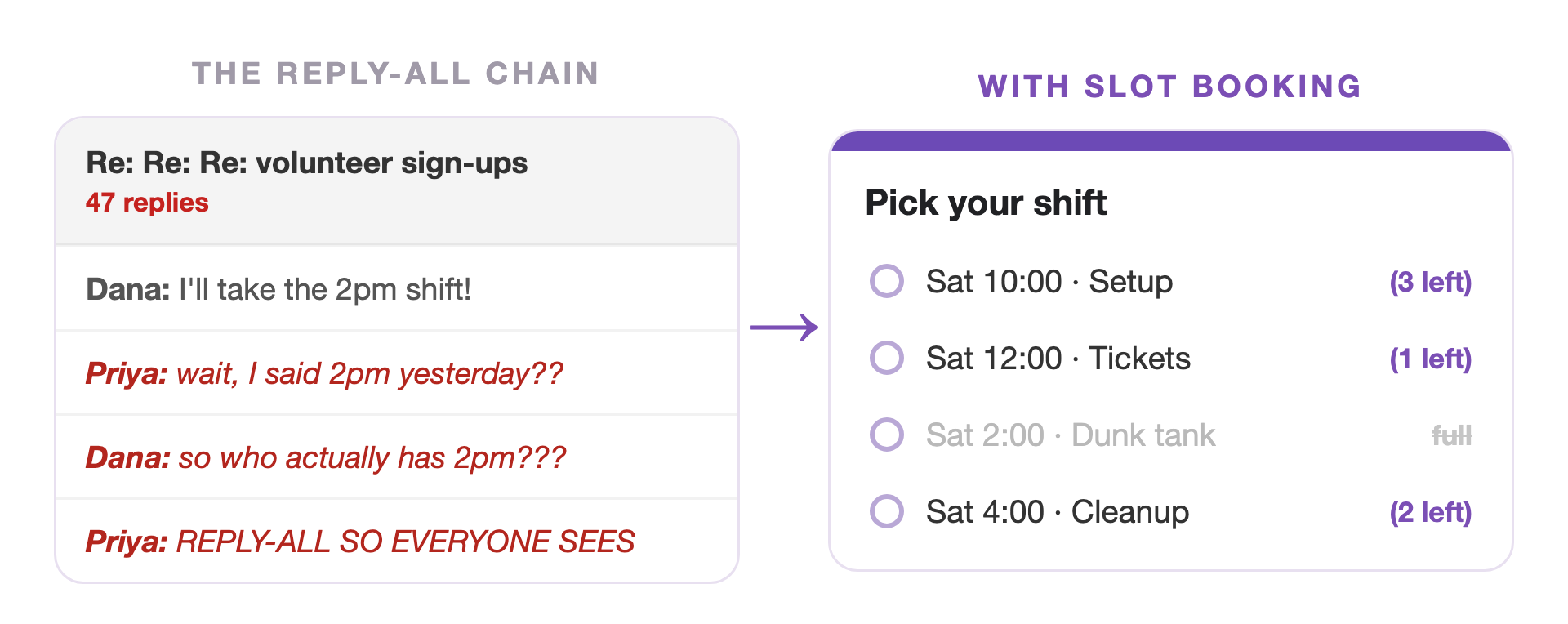
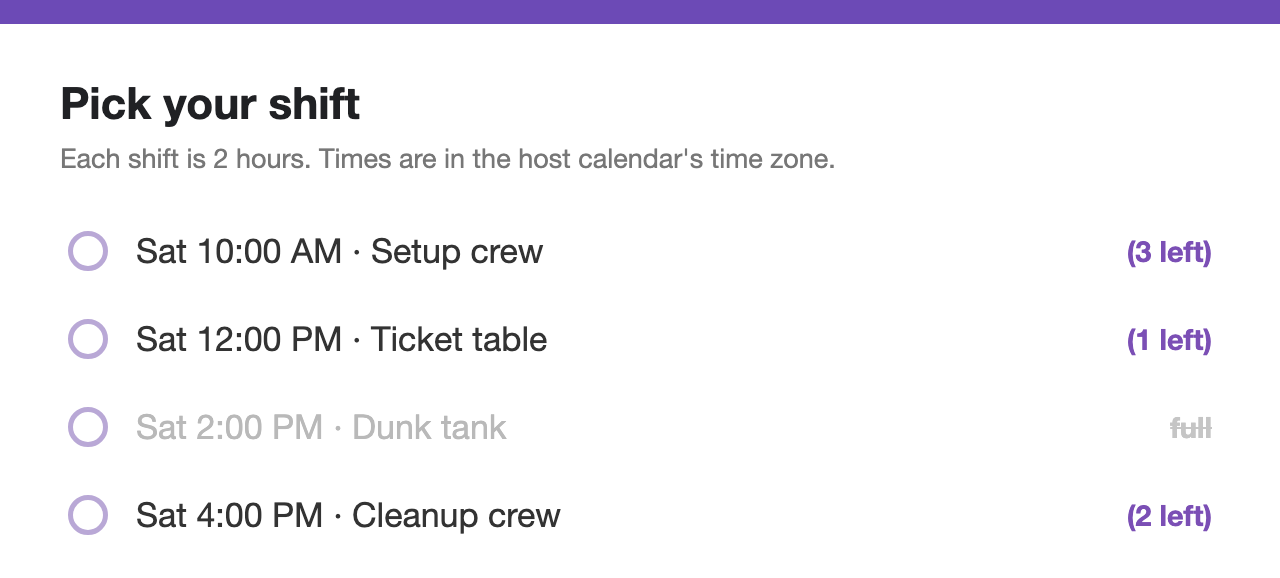
Spots count down as people book. When a shift fills, it leaves the form on its own.

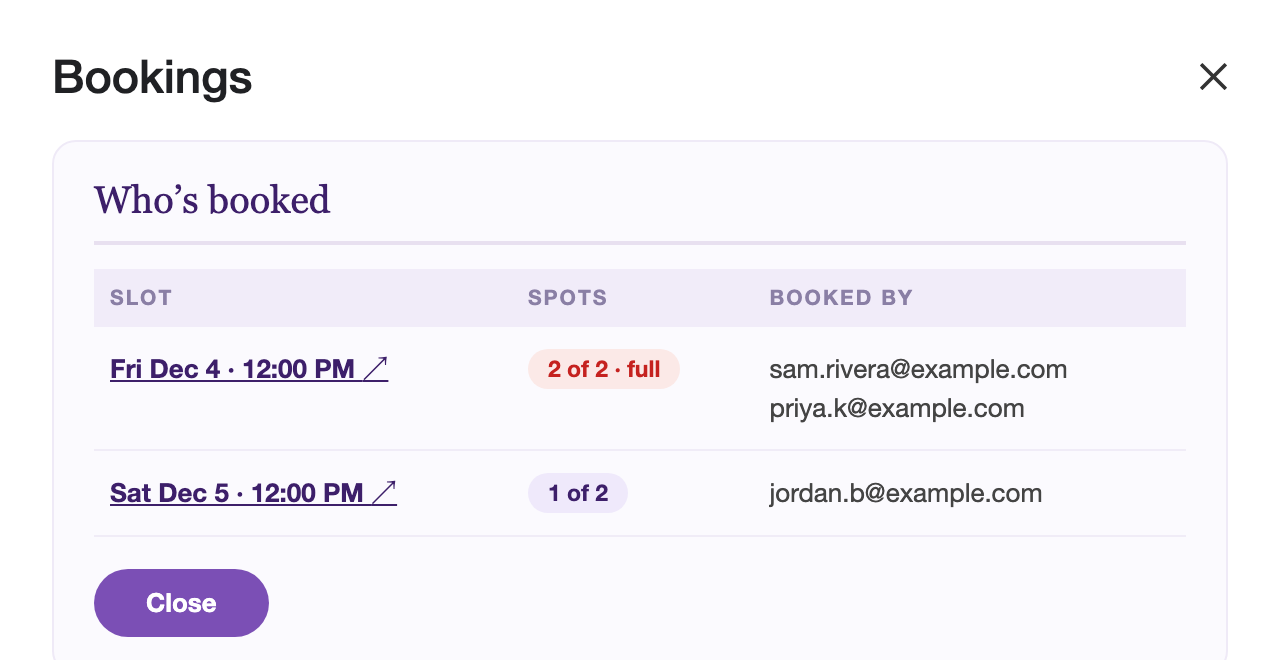
A live roster with spots left per slot and a calendar link for each one.

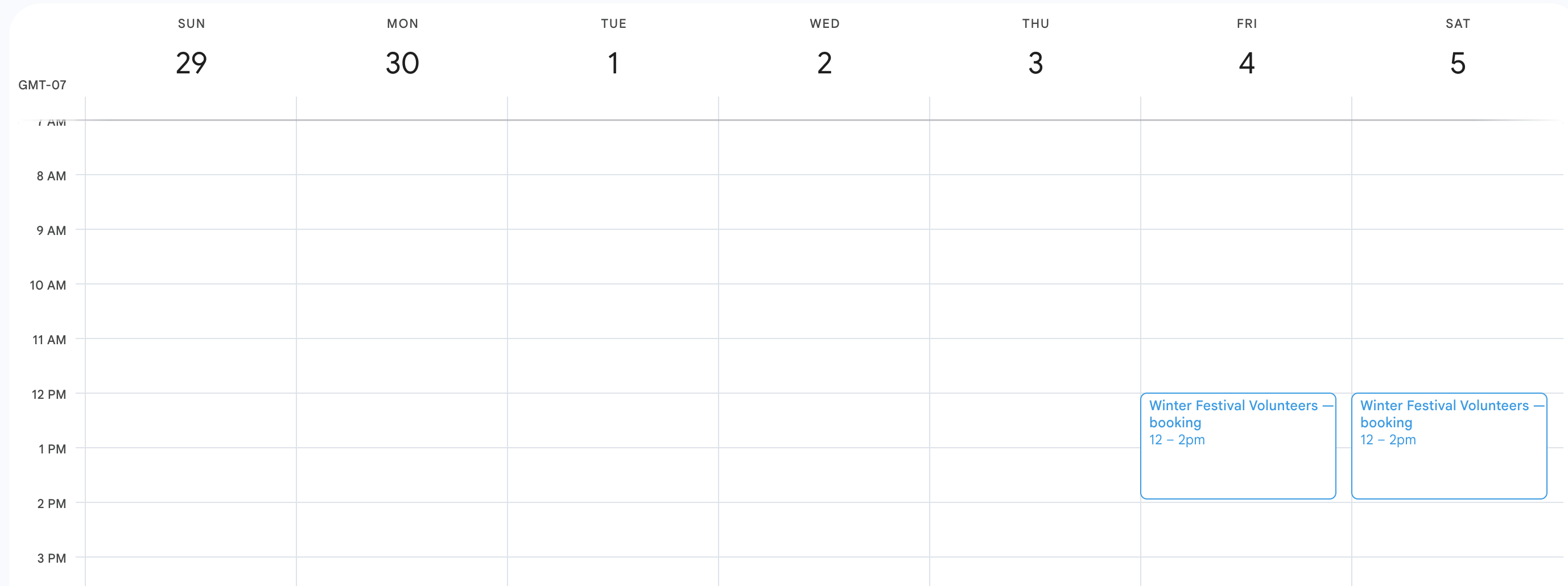
One event per slot, respondents added as guests. Delete an event and its slot reopens on the form.
Why Slot Booking
Bookings are counted on the calendar itself, and the form is never allowed to promise a spot it doesn't have. If two people race for the last spot in the same second, exactly one gets it. Why other booking forms double‑book →
Whoever books gets the calendar invite. Whoever misses out by a moment gets an email saying so, right away, not a surprise on the day.
Every slot is a real event you can see, share, and cancel like anything else on your calendar. Cancel one and the slot reopens on the form by itself.
If your settings make more times than a form can show, it says so and rotates later times in as earlier ones fill. Nothing is silently hidden. Why the Forms response limit can't hold a spot →
Volunteer shifts, parent-teacher slots, equipment checkout, office hours.
Install free from the Google Workspace Marketplace™ →FAQ
You don't set up the form; the add-on does. Make a form (or open one you have), click the puzzle-piece icon, open Slot Booking, pick a calendar and your times, and save. That one save adds the booking question, fills it with real times, and turns on verified email collection. Add your own questions around it: t-shirt size, notes, whatever the sign-up needs.
The form has two ways of deciding which days to offer, and "last day" is the switch between them.
Leave "last day" empty and you get a rolling window: the form always offers the next however-many days you set in "days ahead," and the window moves forward by itself each day. That fits ongoing things, like office hours that run indefinitely.
Set a "last day" and the window stops moving: the form offers slots up to that date and no further. That fits one-time events, like a festival on a fixed weekend.
"First day" works the same in both modes: the form offers nothing before it. Use it when signups should open now for something later, like posting the form in July for shifts that start in August.
Partly. The question is on your form, but Slot Booking manages part of it.
Yours to change: where the question sits in the form, and what its title says. Move it or rename it and that sticks.
Managed by Slot Booking: the list of times and the small note under the question. Those are rewritten whenever slots fill, pass, or reopen, so anything you type into them by hand is overwritten at the next update. A time typed in by hand couldn't book anything anyway, because it doesn't match a real slot.
If the question gets deleted, Slot Booking recreates it on the next save or refresh, so your form can't lose its booking box by accident.
Delete the slot's event in Google Calendar, the same way you cancel anything. The guests get Google Calendar's standard cancellation notice, the slot reopens on the form at the next refresh, and you get a heads-up confirming it.
Always. Whoever books gets the calendar invite. If someone submits a moment too late for a full slot, they get an email saying the time was taken, and you get a notice. If someone submits while no times are open, they get an email saying nothing was booked. Nobody is left believing they have a slot they don't have.
One honest caveat: all of this goes to the email address on the submission. Keep your form's email collection set to "Verified" (the default on new setups) and the address is always the respondent's real signed-in account. Typed-in addresses can be misspelled, and a misspelled address is where emails go to disappear.
A form's dropdown can hold 250 choices, so that's the most Slot Booking can show at once.
If your settings create more times than that (say, 5-minute slots all day for three months), the form shows the 250 soonest ones. The rest aren't lost. They're waiting in line. Whenever a shown time fills up or passes, the next waiting time takes its place on the form.
So respondents always have real times to pick; they just see the nearest ones first. If you'd rather have every time visible at once, generate fewer of them: a shorter date range, fewer days of the week, or longer slots.
A booking is a commitment: narrowing your window stops new bookings, but it doesn't cancel people who already booked. Those rows are marked "no longer offered on the form." To actually cancel one, delete its event in Google Calendar.
The usual cause is a typo in a typed-in email address. The fix is in your form's settings: set email collection to "Verified" and Google fills in the respondent's signed-in address itself, so typos are impossible. Slot Booking uses Verified by default on new setups. Verified requires respondents to be signed in to a Google account; switch to typed-in collection if your audience can't sign in.
As many or as few as you want. Both kinds are settings in the panel. Heads-up emails go to whatever address you set, at most one a minute with anything more batched into a single digest shortly after; leave the address empty and none are sent. The who's-booked summary is daily by default (mornings, skipped when there's nothing to report), and you can switch it to weekly on Mondays or turn it off.
The calendar's own time zone, always: the same one Google Calendar shows. Pick a different calendar and the slots follow its zone. The note under the slot question says this to respondents too.
Between your form and your calendar, inside your own Google account. There is no Marinette server, no account to create, and nothing is sent to any external service. Booking emails are sent from your own account, to you and to affected respondents, and never to anyone else. See the privacy policy for the full details.
That's a known Google Forms limitation, and it affects every Forms add-on: when a browser is signed in to several Google accounts at once, Google can run the add-on as the wrong one. It usually shows up as a calendar that can't be found or a panel that seems confused about who you are. The panel says so in plain words when it catches this happening.
The fix: open the form in a browser window or profile signed in to just the account that owns it, then save again. Your respondents are never affected; this only concerns the account managing the form. Here's the full explanation and the lasting fix.
Still have a question? I'm happy to help.
Email support@getmarinette.com