Receipt Organizer for Gmail™ by Marinette
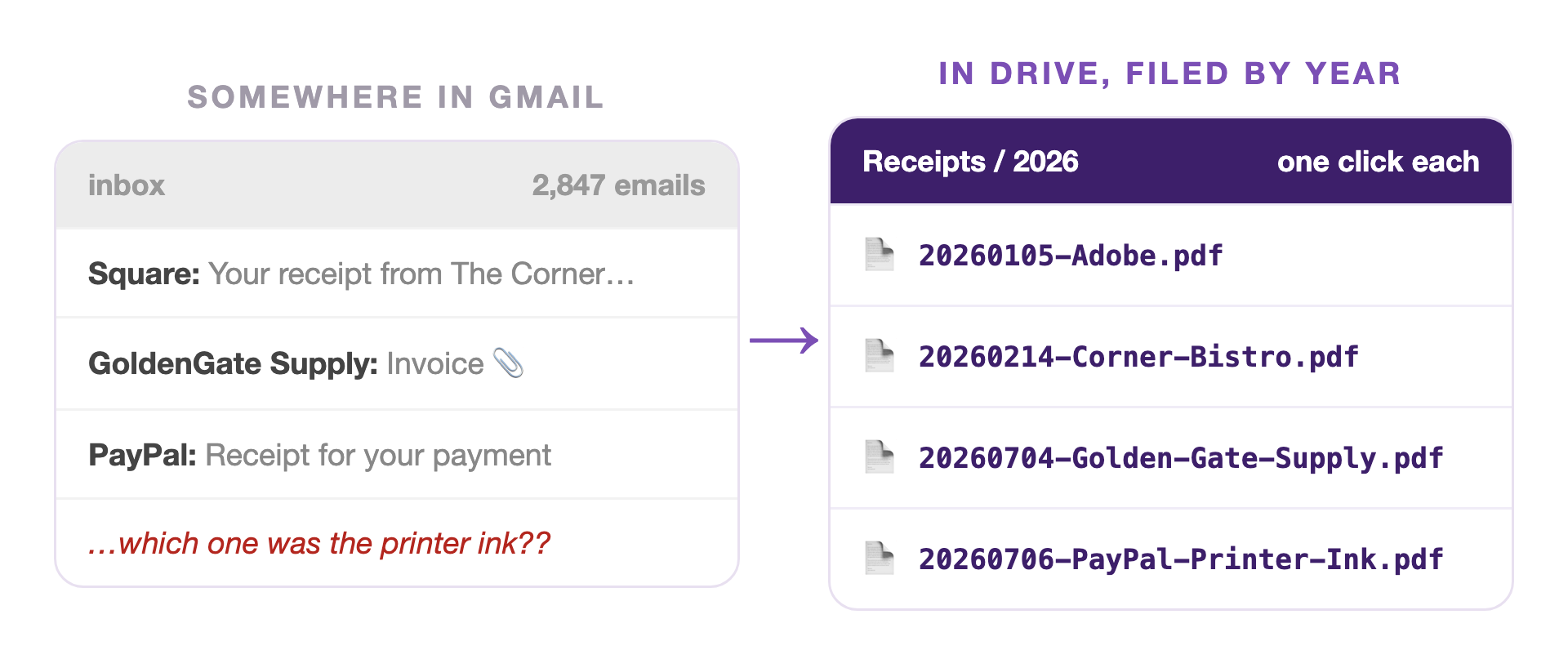
Payment notifications, emailed invoices, and receipt attachments all save straight from Gmail™ to Google Drive™ with clean names like 20260703-Acme.pdf, organized by year. No forwarding, no downloading, no renaming.
Free to install · It can't see your inbox, only the email you have open
For freelancers, salon and studio owners, consultants, and anyone whose receipts live in their email
When you install, Google shows a screen of permission boxes that all start unchecked. Tick every one, or the add-on cannot do its job.
How it works
Attachments, payment notifications, plain text, or pasted photos can all be saved.
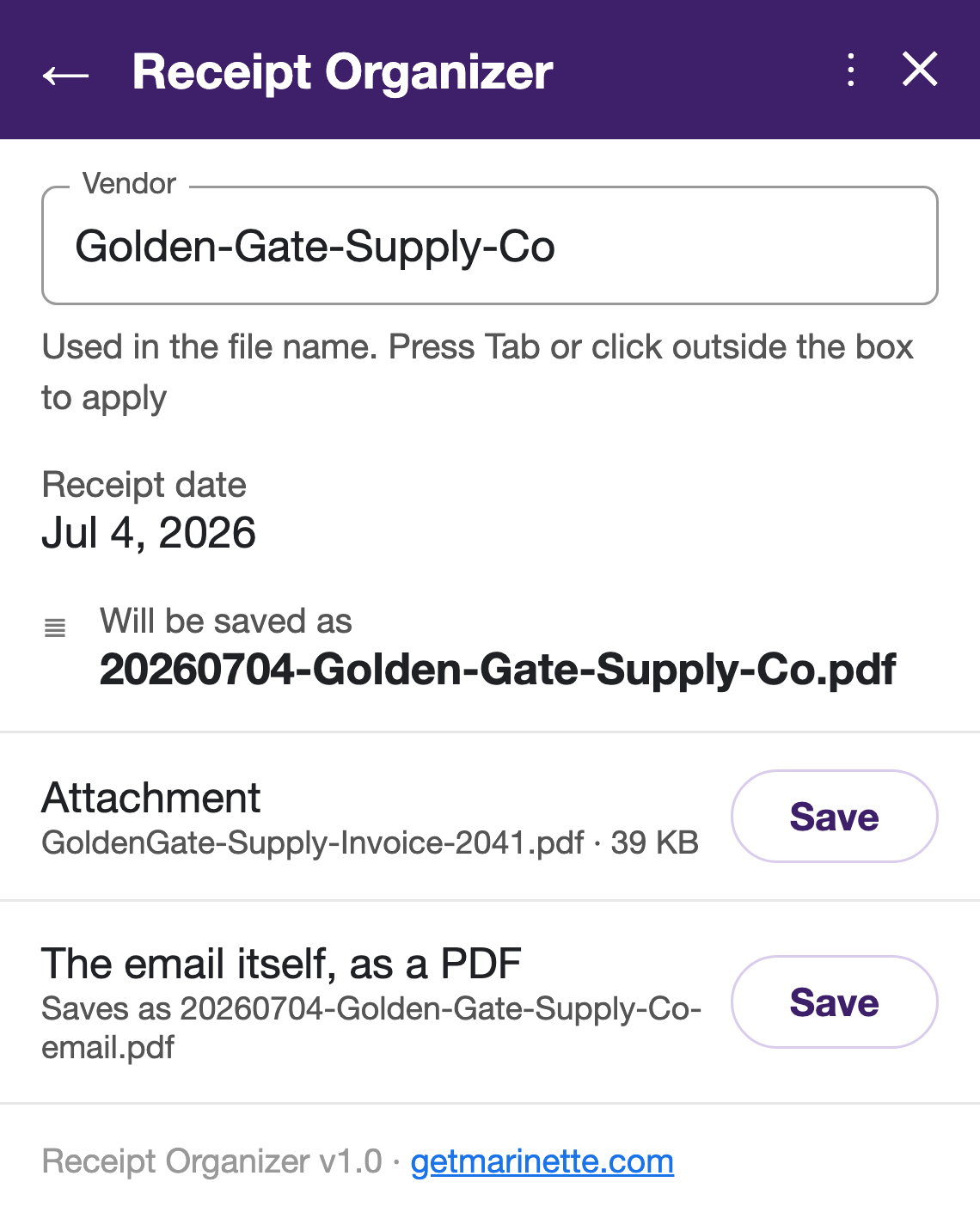
Vendor and date are detected automatically. Edit the name if you like.
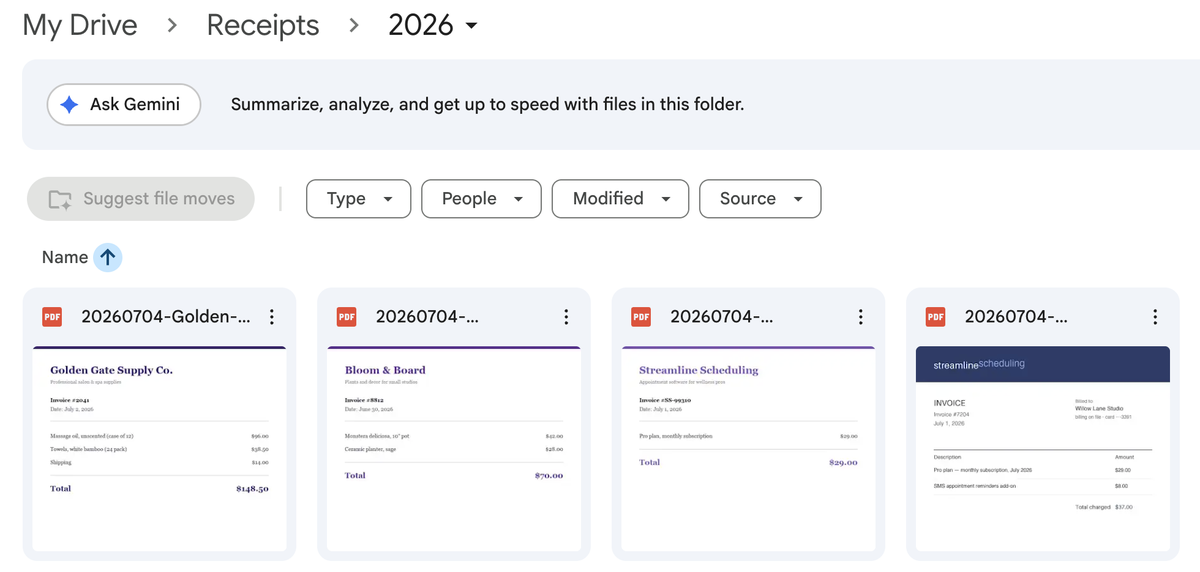
The receipt is saved in your Drive, sorted by year.
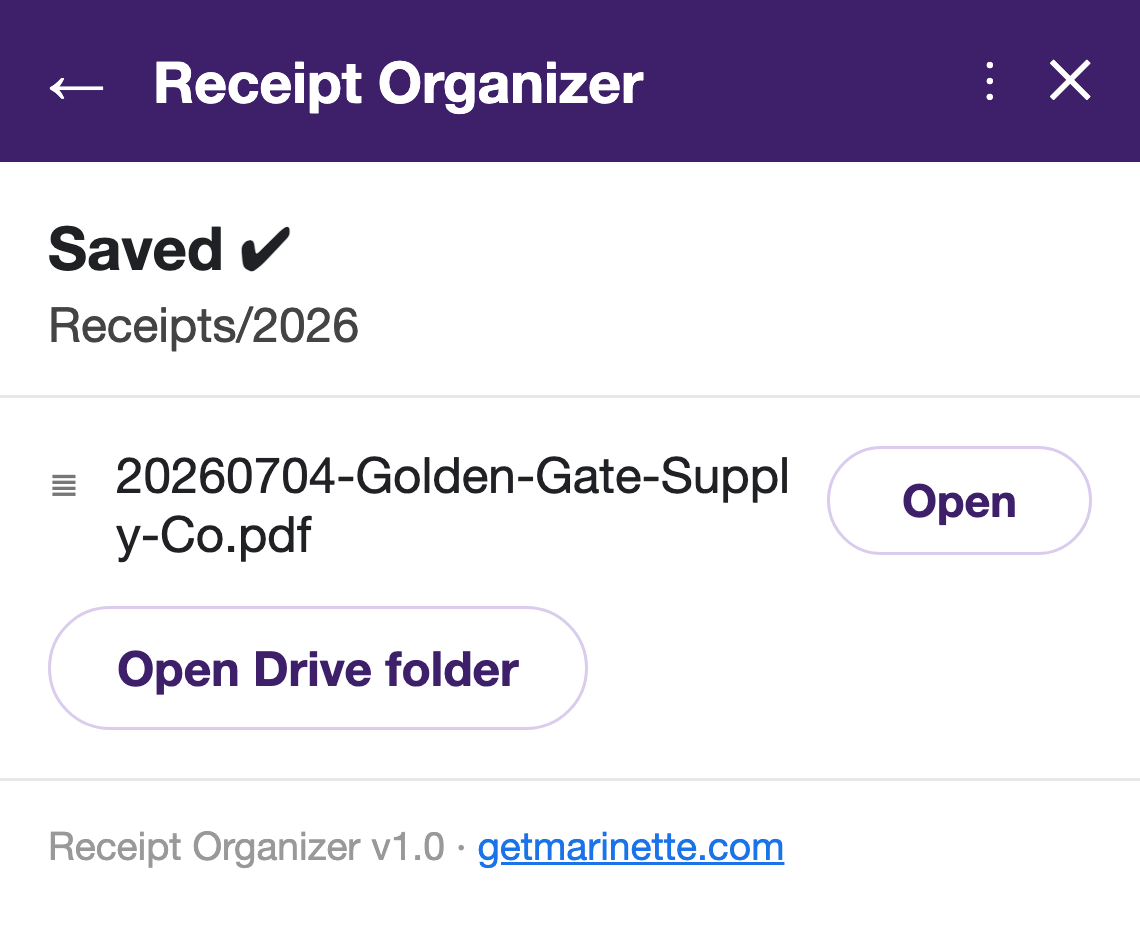
Receipt Organizer displays a link to every receipt.
See it in action

The vendor and the date are filled in, and you see the exact file name before you save.

The confirmation links straight to the saved PDF in Drive.

Every receipt gets a clean name and lands in the right year.
Why Receipt Organizer
Receipt Organizer only sees the single email you have open, and only while you're using it. In Drive, it can only see the files it saved for you. That's not a promise. It's the permission model.
20260703-Jane-Doe.pdf beats invoice_8841_final(2).pdf. For Square, PayPal, and Venmo payments, it even detects your client's name or the amount.
Square and most payment platforms put the receipt in the email itself. One click saves the whole email as a tidy PDF: subject, sender, date, and all.
Reopen an email you've handled and it shows "already saved." Two receipts from the same vendor on the same day? Both kept, automatically numbered.
Free to install · Works with any Gmail account · Questions? Email me.
Install free from the Google Workspace Marketplace™ →Help & FAQ
Yes, that's one of Receipt Organizer's favorite jobs. Square, PayPal, and most payment platforms send receipts as the email body with nothing attached. Click Save email as PDF and the whole email becomes a PDF in your Receipts folder, with the subject, sender, and date printed at the top.
One note: the PDF keeps all the text (amounts, dates, invoice IDs), but images hosted on the sender's servers (like logos) may not appear. Photos pasted directly into an email are detected separately and can be saved as image files.
No, and that's a deliberate choice, not a missing feature. Automatic background saving would require permission to read your entire inbox. Receipt Organizer is built on a much narrower permission: it can only see the one email you have open, while you're looking at it.
In practice, saving a receipt takes one click, and the panel follows you from email to email. Most people clear a week of receipts in a couple of minutes.
Three, and they're all narrow:
Nothing is ever sent outside your Google account. See the privacy policy for the full details.
No. Because Receipt Organizer can only see folders it created, it makes its own Receipts folder and always uses that one. If you end up with two folders with the same name, just rename either one, or drag the add-on's folder anywhere you like, even inside your existing one. It tracks its folder by identity, not by name or location, so renaming and moving never break anything. You can also rename it right from the add-on's home panel.
It's the add-on's own memory of what it saved from that email: a reminder, not a live check of your Drive. If you rename the saved file in Drive, the badge still shows the original name; if you delete the file, the badge remains, and Save again simply saves a fresh copy. Nothing is ever overwritten, so there's no risk either way.
Both get saved. The second one is automatically numbered (20260703-Acme-2.pdf) with no warnings or extra clicks, because Receipt Organizer can tell they came from different emails. You only see an "Already saved?" confirmation when it looks like you're saving the same receipt twice.
Two easy ways:
For older files, right-click the file in Drive and choose Copy link. (Tip: double-clicking a file in Drive opens a preview that keeps the folder's URL in the address bar. That's a Drive quirk, not your receipt hiding from you.)
Receipt Organizer treats that as "start from scratch." The next time you open it, it forgets everything (the folder, the already-saved badges, the recent saves list) and behaves like a fresh install. Note that moving the folder to the trash counts as deleting; restoring it from the trash won't reconnect it, and a new folder will be created on your next save.
Yes, they get special treatment. When a payment platform sends the email, "Square" isn't a very useful vendor name, so Receipt Organizer looks for your client's name in the email and suggests that instead. When no name can be found, it uses the payment amount, so fifty Square notifications become 20260703-Square-85.00.pdf instead of fifty identical names. The suggestion is always editable before you save.
Still have a question? I'm happy to help.
Email support@getmarinette.com