Receipts in Gmail™

How to save a Gmail™ receipt to Google Drive

Add to Drive does exactly what it says and nothing more. The file lands in Drive under whatever the sender called it, which is usually receipt.pdf. Do that for a year and you have a folder of files with the same name, no dates, and no idea which one your accountant is asking about. And for most receipts these days there's no attachment to click at all.

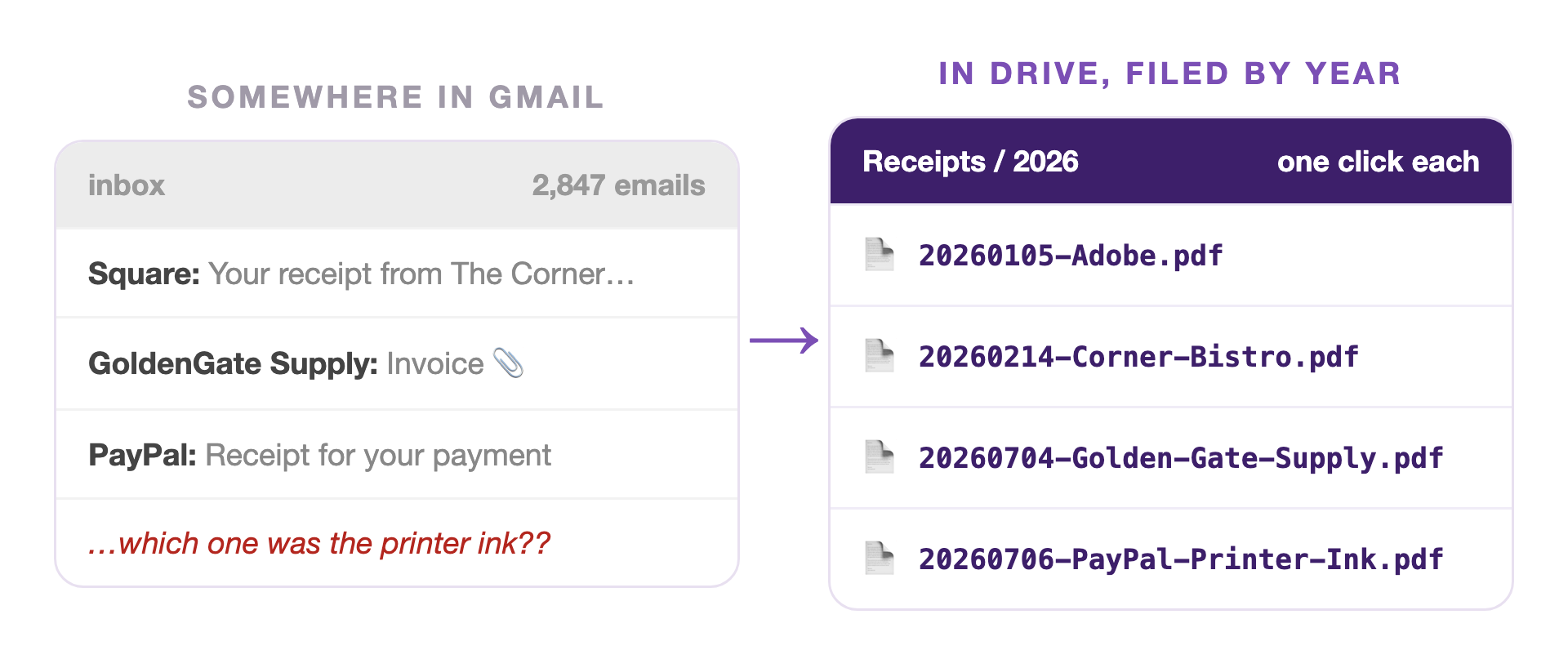
A Gmail inbox of scattered receipts beside a Drive folder of receipts named by date and vendor
Receipt Organizer for Gmail™: every receipt saved as the date and the vendor, in a folder for the year.

The fix · from Marinette

Receipt Organizer for Gmail™

Install free from the Marketplace →

No account to create · No website login · Your data stays in your Google account

Trying to get a whole year of them in order instead? How to organize receipts for taxes →

What Add to Drive actually does

Google documents the whole flow in four steps: open Gmail, open a message, hover over the attachment at the bottom of the message, click Add to Drive. Read that list again and notice what isn't in it. There's no step where you name the file. There's no step where you pick a folder.

So the receipt arrives in your Drive carrying the name the sender's billing system gave it. Sometimes that's useful. Usually it's receipt.pdf, invoice.pdf, or Document(3).pdf. The date you paid, the business you paid, and the reason you cared are all in the email you just left behind.

This is fine once. It stops being fine at about thirty, which for most people is somewhere in March of the following year, roughly a week before they need the answer. Thirty files, all named receipt.pdf.

The receipts Gmail can't help with at all

Now the bigger half. Hover over an Amazon order confirmation and there's nothing to hover over. Same for Uber, for most subscriptions, for nearly every SaaS invoice under fifty dollars. The receipt is the email. There's no attachment, so there's no Add to Drive button, so the feature simply doesn't apply.

Done by hand, the route is Print, then Save as PDF, then find where the browser put it, then rename it to something you'll recognize, then move it into the right folder. Five steps, per receipt, and any one of them is easy to abandon halfway when you're doing something else.

That's the gap worth fixing, and it isn't a naming detail. It's most of your receipts.
March, two ways

Saved as you went

With Add to Drive

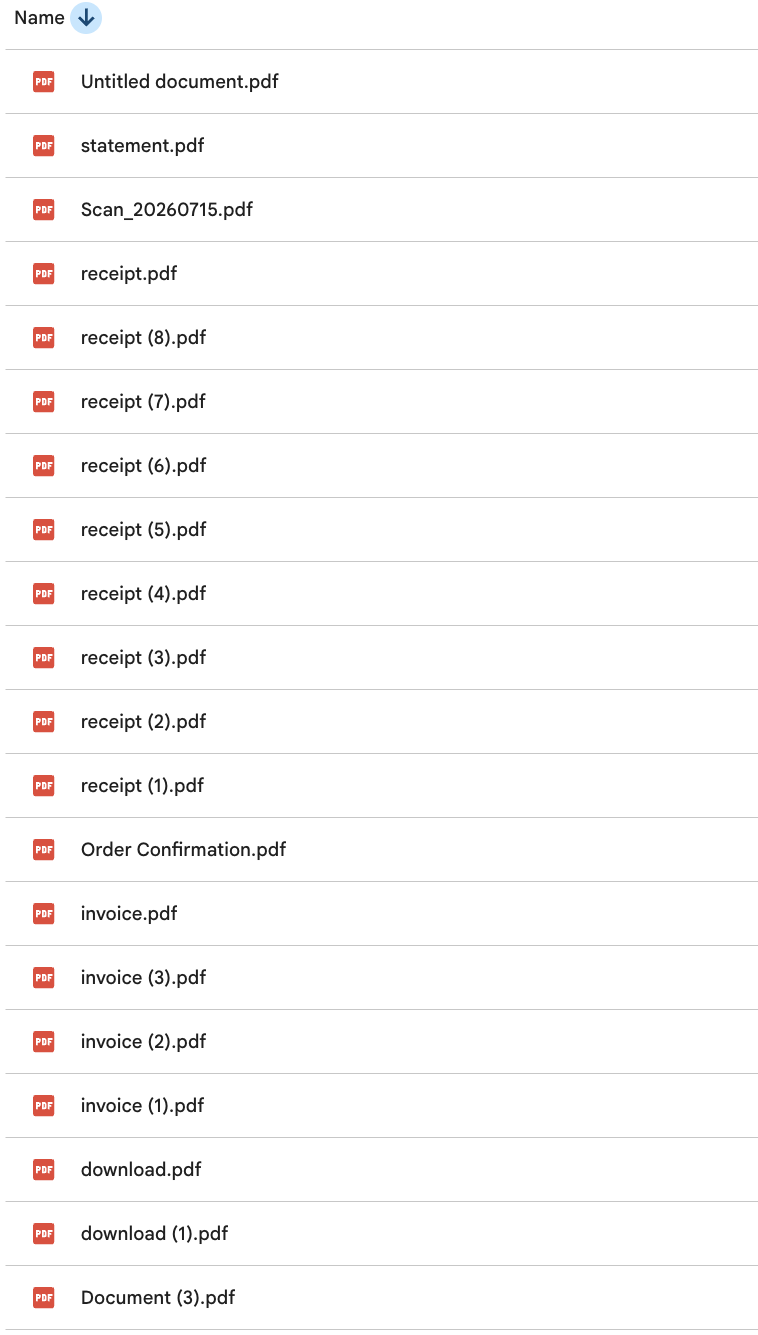
A Google Drive folder listing files called receipt.pdf, receipt (1).pdf through receipt (8).pdf, invoice.pdf, download.pdf, statement.pdf and Untitled document.pdf, none of them showing a date or a business name
Every file arrived named by whoever sent it. In March, none of them can tell you when it was or who it was from.

Saved with its name on it

With Receipt Organizer for Gmail™

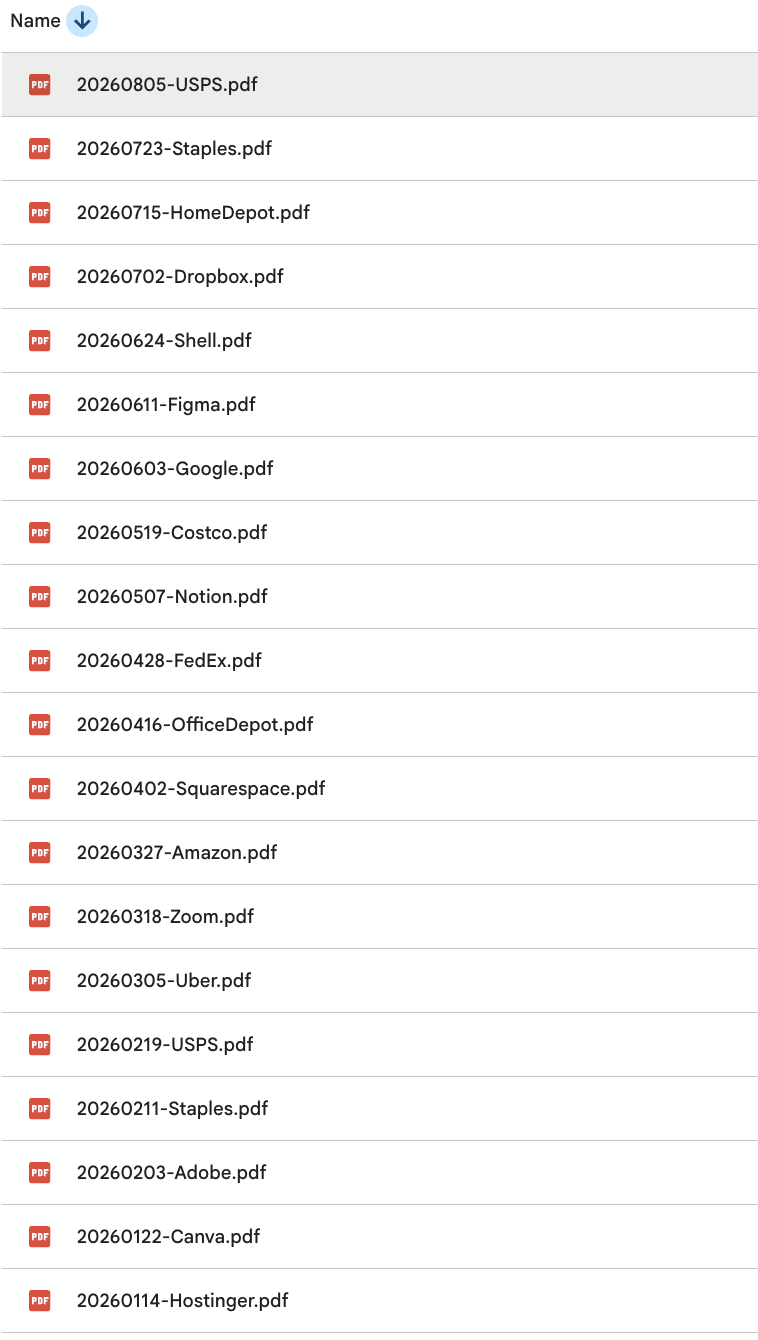
The same receipts in a Google Drive folder, named 20260805-USPS.pdf, 20260723-Staples.pdf, 20260715-HomeDepot.pdf and so on down to 20260114-Hostinger.pdf, sitting in date order
One tap each, attachment or not. The date and the business name are the filename, so a year sorts itself.
Install Receipt Organizer free →

Saving the same receipt twice is handled rather than duplicated: the folder is checked first, and a repeat of the same email says so instead of writing a second copy. Two genuinely different receipts from one vendor on one day both get through, with their own names, because that happens.

Three ways to file a Gmail™ receipt

Add to Drive Print, save, rename, move Receipt Organizer
Receipt is an attachment One click Works, slowly One tap
Receipt is the email body No button exists Five steps, every time One tap, saved as a PDF
Filename Whatever the sender called it Whatever you type Date and vendor, every time
Where it lands No folder step Wherever you drag it Receipts, then the year
Saving one twice Two copies Two copies Caught and flagged
Price Free Free, in minutes Free

The Add to Drive column reflects Google's own documentation, Open & download attachments in Gmail, viewed July 24, 2026, where the documented flow is four steps with no filename or folder step. Google may change this at any time, and if it does, this page gets updated to say so.

Let the filename do the remembering.

Receipt Organizer for Gmail™ is free. No card, no account to create.

Install Receipt Organizer free →

Common questions

Google's documented steps: open Gmail, open a message, hover over the attachment at the bottom, click Add to Drive. That's the whole flow. No step names the file and no step picks a folder, so it lands under whatever the sender called it.

Twenty of those and you've got twenty files called receipt.pdf with nothing to tell them apart.

Gmail has no button for it, because there's nothing to hover over. Most receipts are like this now: Amazon, Uber, and nearly every subscription put the receipt in the body of the email.

By hand it's Print, Save as PDF, rename, move. Receipt Organizer does it in one tap, turning the email itself into a PDF, headed with the subject, sender, and date, filed by date and vendor.

Two things make a receipt findable a year later: when it happened and who it was from. Everything gets saved as YYYYMMDD-Vendor inside Receipts and then a folder for the year, so a year sorts itself chronologically and the one your accountant asks about is a vendor search away.

The folder is checked before anything is written. A repeat of the same email says so instead of saving a second copy. Two genuinely different receipts from the same vendor on the same day both get through under their own names, because that's a real thing that happens.

Yes. It works on whatever message you're reading, so an email from March is no different from one that arrived this morning. The file is dated from the email itself, not from the day you finally filed it.

That's the pairing it was built for. Save the receipt from Gmail, then paste its Drive link into the Receipt column of Expense Tracker, and the expense row and its proof stay together. Which Schedule C line each expense belongs on →

Gmail behavior described here comes from Google's own help page, Open & download attachments in Gmail, viewed July 24, 2026. Google may change how Gmail saves attachments at any time.

Still have a question? I'm happy to help.

Email support@getmarinette.com