The short answer
If the schedule is done and will never change, Google's CSV importer is fine: it is built in, it is a one-time copy, and you can be finished in ten minutes if your file is formatted the way Google expects.
If the schedule will change, and most schedules change, use the add-on. Practices get moved, shifts get swapped, the venue falls through. A one-time copy has no answer for that; a synced sheet does. Edit the row, sync again, and the event updates.
If you write code for fun and want full control, Apps Script is free and yours forever. You will also be its only maintainer, which is a bigger sentence than it looks.
Way 1: The add-on, so rows become events with a preview
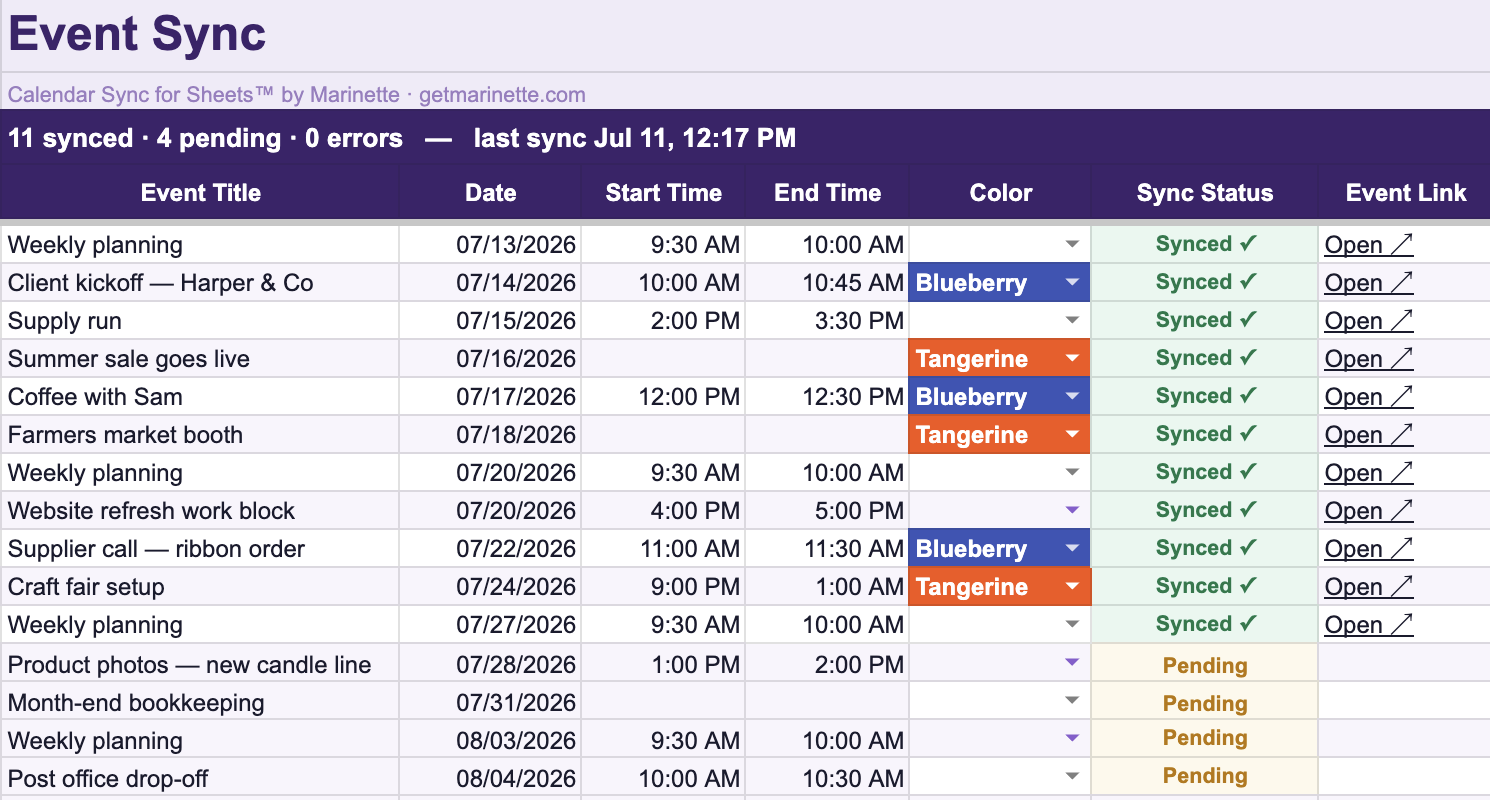
Calendar Sync for Sheets™ is a free Google Workspace Marketplace™ add-on, built and supported by Marinette. Install it, run Set Up New Sheet, and you get an Events tab where each row is one event: title, date, start and end, description, location, guests, a Google Meet checkbox, and a color.
- Put the schedule in as rows. Type them, paste them from another sheet, or use Add from Schedule to read a PDF, a photo, a link, or pasted text straight into rows.
- Click Preview & Sync. The preview says exactly what will happen first: how many events will be created or updated, which rows have problems, and whether anyone will be emailed.
- From then on the sheet is in charge. Edit a row and sync, and the event updates. Delete a row, and the next sync can remove the event too, if you turn that setting on.
It also works in the other direction: Import from Calendar pulls existing events into the sheet for a date window you pick, so you can clean up a season in bulk instead of one event at a time. And if someone edits an event directly in Google Calendar, the row turns blue and says so the next time you check, instead of being silently overwritten.
The honest limits: it syncs when you click, not on a timer. The free tier covers 50 new events a month, with unlimited edits and re-syncs, and the schedule-file import runs once a day. Multi-day items land as one row per day.
Way 2: Google's CSV importer, built in and one-way
Google Calendar can import a CSV file directly. Lay the sheet out with Google's expected headers: Subject, Start Date, Start Time, End Date, End Time, All Day Event, Description, Location. Then download it as CSV, then in Calendar open Settings → Import & export, choose the file and the destination calendar, and import.
Google Calendar Help · Import events to Google Calendar
"Imported events don't stay in sync between your 2 accounts."
An import is a copy, not a connection. Edit the sheet afterward and the calendar does not care.
Two things to know before you click Import. First, the format is fussy: date and time columns have to look exactly the way Google expects, and when they don't, events land at wrong times or the importer refuses the file with a vague error. The fixes are collected in the CSV import troubleshooting guide. Second, there is no undo: once imported, the events are ordinary events with nothing connecting them back to the file. Import into a brand-new secondary calendar first, check the result, and only then keep it. A wrong calendar deletes in one click, a wrong import into your main calendar is a much longer story.
Way 3: Apps Script, free and powerful and yours to maintain
Every Google Sheet has a script editor under Extensions → Apps Script, and the CalendarApp service can create events from rows in a loop you write yourself. For a developer this is a fine Saturday project: it is free, it can run on a time trigger, and it does exactly what you tell it.
It also does only what you tell it. The parts that look easy are the parts that bite: running the script twice creates every event twice unless you build your own duplicate detection, updating a changed row means storing event IDs somewhere, deleted rows leave orphaned events, and time zones are wrong in ways you only notice next month. The most common failure, the script that fills a calendar with duplicates, is common enough that it has its own guide.
If that sounds like a fun problem, write the script. If it sounds like unpaid IT work, the add-on in Way 1 is that script, already written, with the edge cases already found.
Which one should you pick?
- The schedule is final and formatted: Google's importer, into a fresh secondary calendar.
- The schedule will change, has guests, or came from a PDF, photo, or link: the add-on, because the preview and the update path are the whole point.
- You want to own every line of the logic: Apps Script, with the duplicates guide open in the next tab.