What Google Calendar can and can't do on its own
Inside Calendar, the only bulk edit that exists is the repeating-series one: change an event that repeats and Calendar offers this event, this and following events, or all events. That covers a weekly meeting whose room changed. It does not cover fifty separate events that merely have something in common, a wrong word in their titles, the wrong color, the wrong calendar, because to Calendar they are fifty strangers, and each one takes its own click, edit, and save.
This is not a setting you're missing. Even with Calendar's newer color options, there is no select-many anywhere in the product, and people have been asking for one in Google's own help forum for years. So the realistic question isn't how to make Calendar do it, it's which outside tool gets to.
The spreadsheet method, start to finish
A spreadsheet is already a bulk editor. Fill-down, find-and-replace, sorting, selecting five hundred cells at once, that's the whole point of the grid. Calendar Sync for Sheets™ connects that grid to your calendar in both directions, free.
- Install Calendar Sync for Sheets™ from the Google Workspace Marketplace™ and run Set Up New Sheet in a fresh spreadsheet.
- Import from Calendar: pick the calendar and the date window that holds the events you want to change. They arrive as rows, with title, date, times, description, location, guests, calendar, and color each in their own column.
- Edit like it's a sheet, because it is one. A few of the moves this unlocks:
Rename with find and replace
Sheets' own Find and replace (Ctrl+H) works across the Title column: "Rm 204" becomes "Rm 117" in sixty titles in one pass. Calendar has no find-and-replace at all.
Recolor a whole set
Color is a dropdown column. Select the Color cells for every row that should change, set the value once, done. The sheet even paints each cell in the real Google Calendar color, so you can see the season at a glance.
Reschedule in bulk
Dates and times are just cells. Sort by date, select the block that moved, and paste the corrected dates over it, or use a formula in a scratch column to shift a date range and paste the results back as values.
Move events between calendars
Calendar is a column too. Change it on the rows that should live elsewhere, and on sync each one is removed from the old calendar and created on the new one.
Delete in bulk
Delete the rows, switch the delete setting to Yes, sync. If the mess you're cleaning came from a botched file import, that whole rescue has its own guide: how to undo a Google Calendar import.
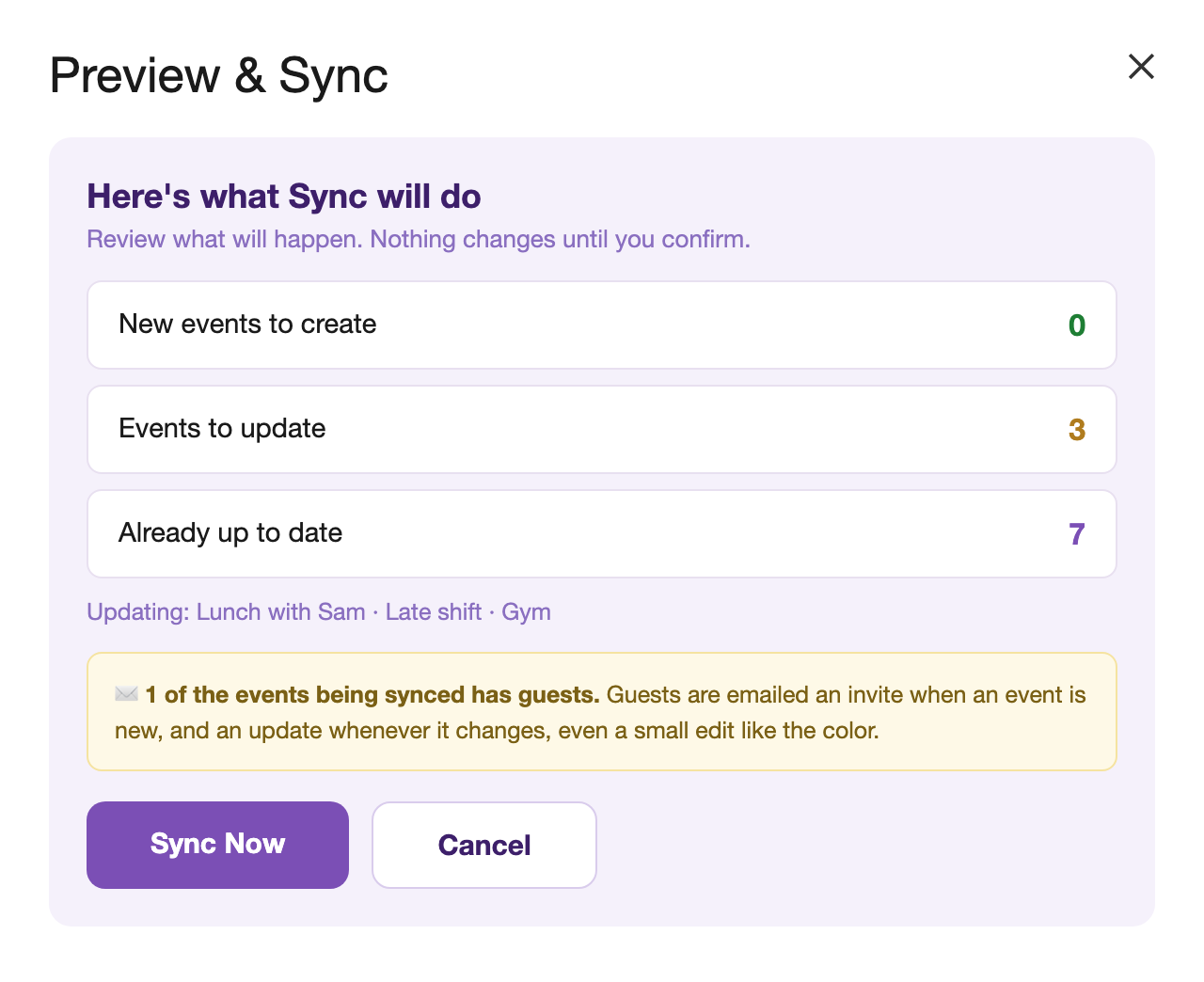
Then the step that makes bulk editing safe instead of scary: Preview & Sync. Before anything is committed, the preview counts what will be created, what will be updated, what's being left alone, and whether any guests would be emailed. If the numbers look wrong, you cancel, fix the sheet, and preview again. Nothing has happened yet. That's the difference between bulk editing with a seatbelt and bulk editing with your fingers crossed.
The honest limits
Worth knowing before you lean on it. Events longer than a single day don't fit the one-row-one-day model, so import skips them and says how many. Events with guests email those guests when a changed row syncs, which the preview warns about, so bulk-editing a calendar full of invited meetings deserves a careful read of that banner. And this works on calendars you own, through Google's calendar API inside your own account, it can't edit a colleague's calendar you can only view.
What else is out there
There are paid desktop programs that bulk-edit Google Calendar, and they are capable, particularly for de-duplicating thousands of events, but they are desktop installs at desktop prices. There are also browser extensions that bolt checkboxes onto Calendar's page; they depend on Google Calendar's page structure, which Google changes without notice, and the reviews show what happens when it does. And there's writing your own Apps Script, which is a fine afternoon until it makes duplicate events. The spreadsheet route sits in the middle: free, no install beyond the add-on, no scraping, and the grid you already know how to drive.