First, take a photo that can actually be read
Whatever tool reads the photo, it can only read what the camera captured. Thirty extra seconds here saves ten minutes of fixing rows later.
- Shoot straight-on, not at an angle. Stand square to the wall so the schedule's lines stay parallel. A steep angle squeezes the far columns into mush.
- Fill the frame with the schedule. Get close enough that the schedule is most of the photo. The dates matter; the bulletin board around them does not.
- Whole schedule in one shot. A cut-off right column means missing days. If it will not fit in one readable shot, take two photos and run two imports.
- Mind the glare. Laminated schedules and glass frames bounce light. Step slightly to the side of any shine, or block it with your body.
- A screenshot beats a photo of a screen. If the schedule is on a monitor or in the group chat, screenshot it. Screenshots are already flat, straight, and evenly lit.
Printed schedules read well. Neat whiteboard block writing usually works. Cursive and faint pencil are where mistakes happen: a handwritten schedule means more fixing in the review step, not none.
Free way 1: The web tool, no install and no account
The free schedule converter runs in the browser: upload the photo, check the events it found, and download them for Google Calendar™. Nothing to install, nothing to sign up for. It is the right tool when this is a one-time job: one poster, one season, done.
Free way 2: Inside Google Sheets, with a review step built in
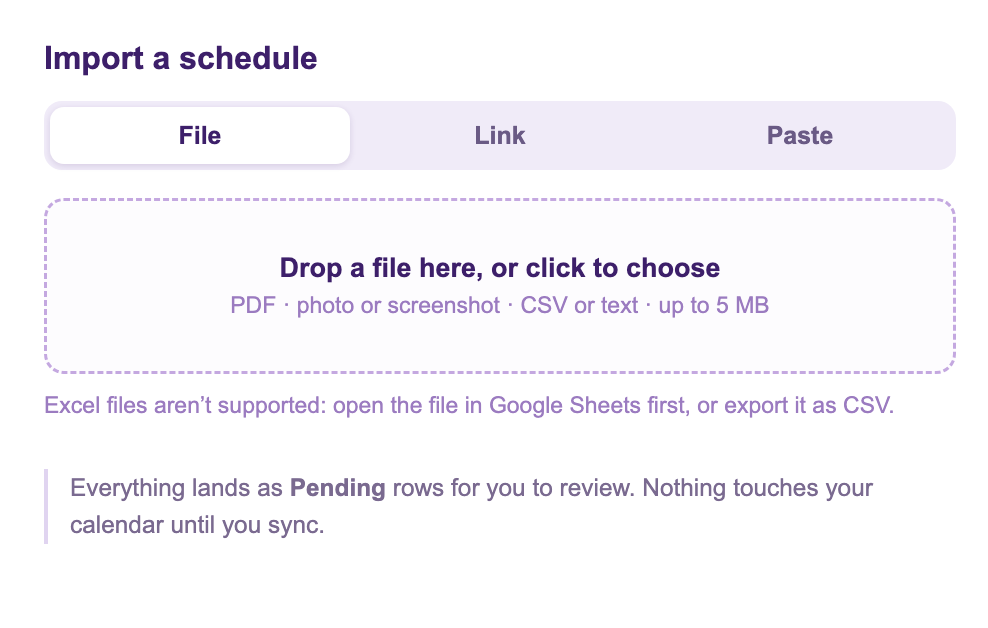
Calendar Sync for Sheets™ is a free Google Workspace Marketplace™ add-on, built and supported by Marinette. Its Add from Schedule feature takes the photo, or a PDF, a link, or pasted text, and turns it into event rows in a spreadsheet.
- Install the add-on, open a sheet, and run Set Up New Sheet.
- Choose Add from Schedule, drop in the photo, and confirm. It reads the schedule and writes one row per event.
- Every row arrives marked Pending, with plain-language notes on anything it had to guess: a year that was not printed, an end time that was not given.
- Check the rows, fix anything, then click Preview & Sync. That is the step that puts them on your calendar, and nothing happens before it.
This route is the right one when the schedule will change, because the sheet stays connected: swap a shift in the sheet and sync, and the calendar follows. It is also the honest answer to "how accurate is reading a photo?" Accurate enough to do the typing, and you still get the review step, so nothing lands unchecked. The reading is in free preview, up to three schedules a day, and one photo can carry a whole season.
Which one?
- One-time poster, want it done now: the web tool.
- A schedule that changes, or one you want to keep editing in bulk: the add-on, for the review step and the ongoing sync.